FEATURE SUITE

JaecooApp
Feature Suite

Explore 19 specialized features across 7 modules, precision-built for Jaecoo & Omoda vehicle displays.

19 features Across 7 modules
2 app stores Jaecoo store & Google Play
11 languages Vietnamese, English, Indonesian, Thai, Portuguese, Kazakh, Chinese, French, Arabic, Russian, Spanish
OTA Updates itself right in the car
MODULE 01 MODULE 01 · COCKPIT WEATHER

Cockpit Weather & Forecast

Driving-focused weather, built for large portrait touchscreens.

Live Weather

Cockpit Weather

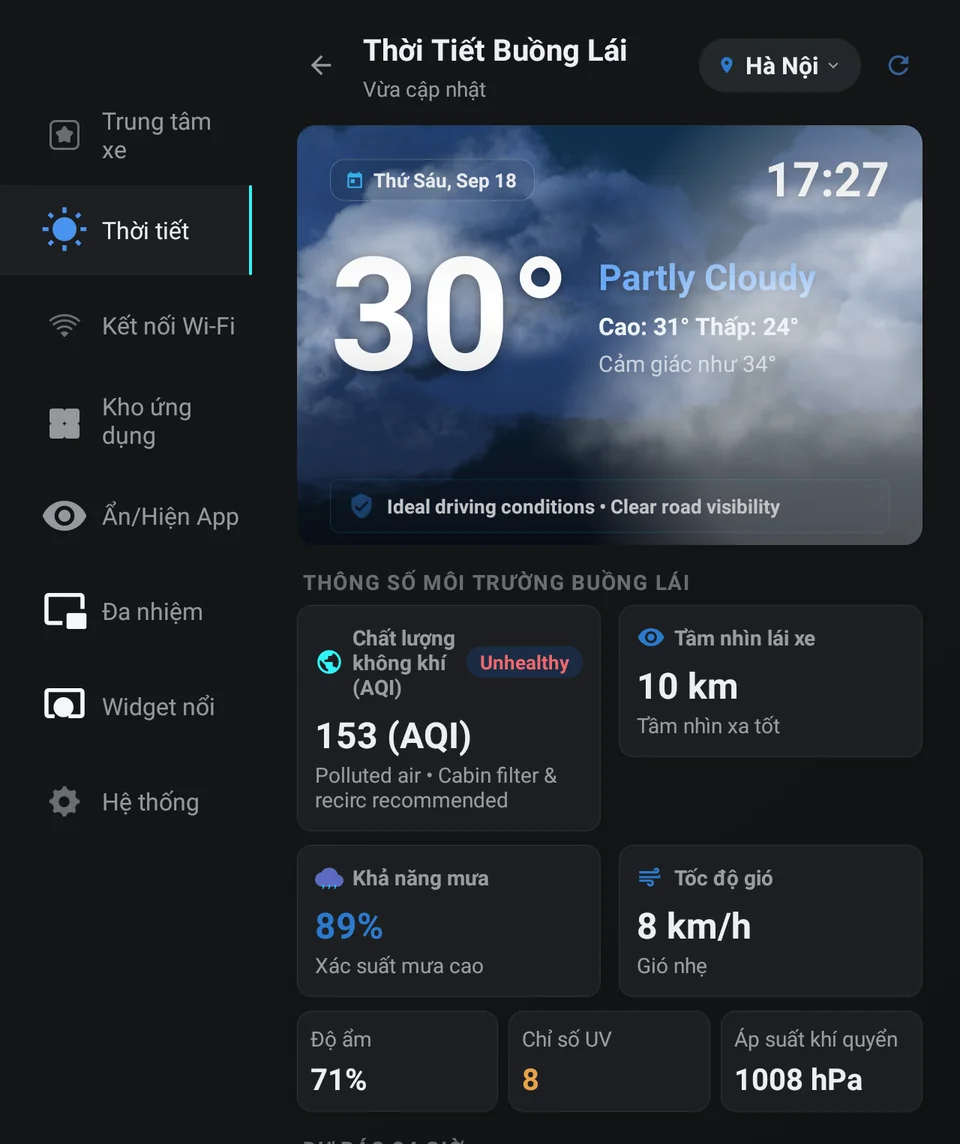
Live weather for the car's GPS position or any city you pick, with driving advice for the current conditions.

  • Animated sky background that follows the weather and day/night
  • Air quality (AQI) with a fresh-air or recirculation tip
  • Visibility, rain chance, wind speed, humidity, UV index and pressure
  • Search any city or pick Hanoi, Ho Chi Minh City, Da Nang…
Forecast

24-Hour & 7-Day Forecast

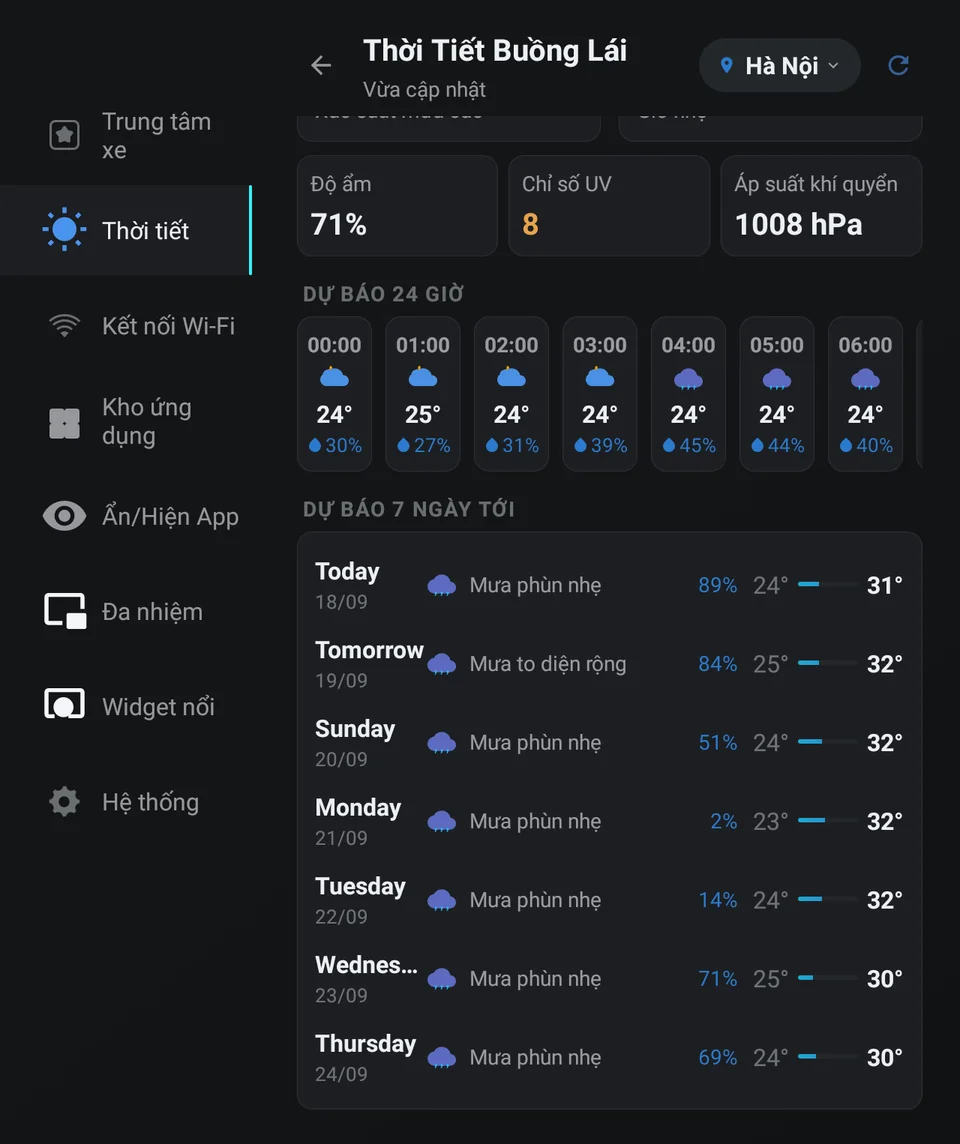
Plan the trip with hourly and daily forecasts right on the car screen.

  • Hourly temperature and rain probability for the next 24 hours
  • 7-day outlook with highs, lows and conditions
  • Cached data so it still works when the car is offline
MODULE 02 MODULE 02 · ON TOP OF EVERY APP

Floating Widget & Multitasking

Keep information and shortcuts within reach without leaving the app you're using.

Overlay

Floating Weather Widget

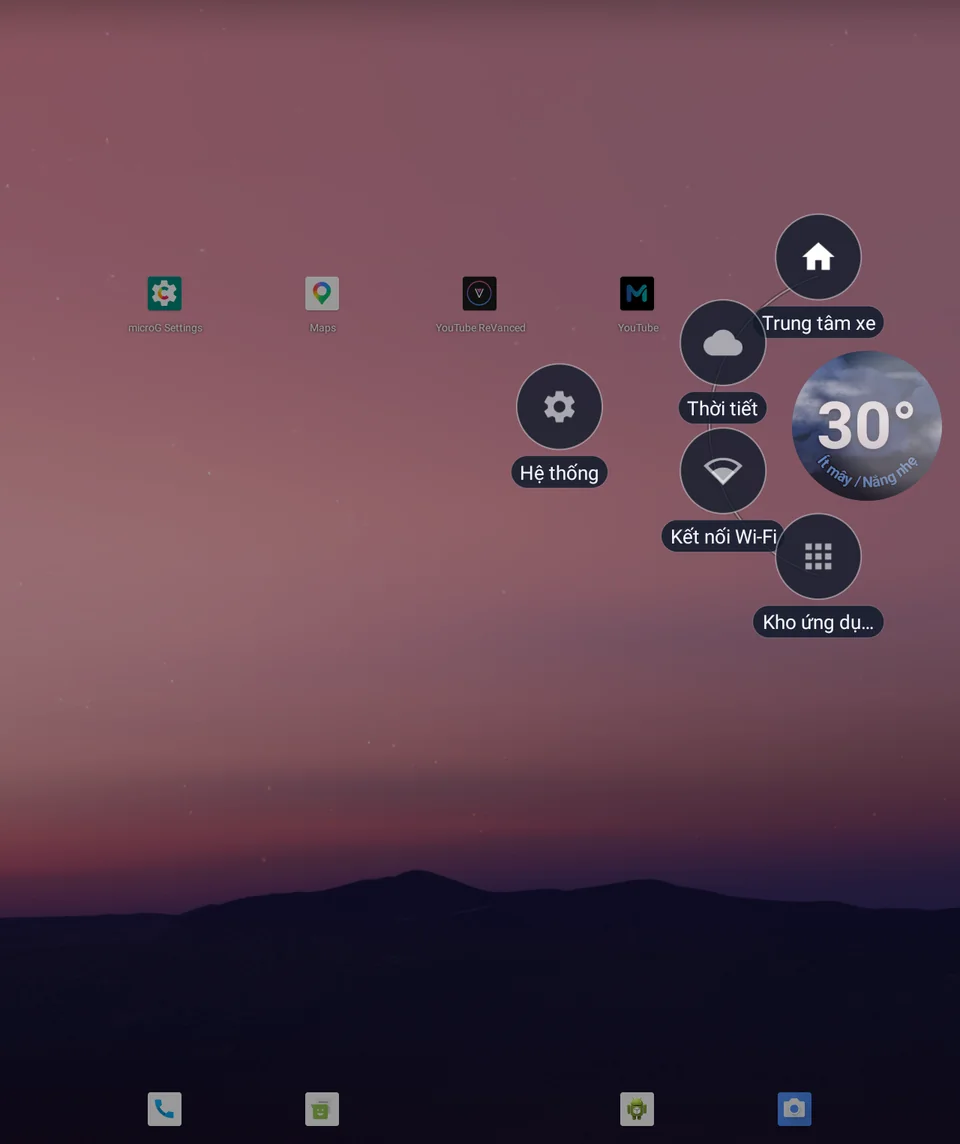
A round weather bubble that floats over every app, even during navigation. Tap it to open a ring of shortcuts.

  • Drag the bubble anywhere on screen
  • Ring shortcuts open JaecooApp screens directly
  • Pin installed apps to the ring for one-tap launch
  • Relaunch your floating-window layout from anywhere
Themes

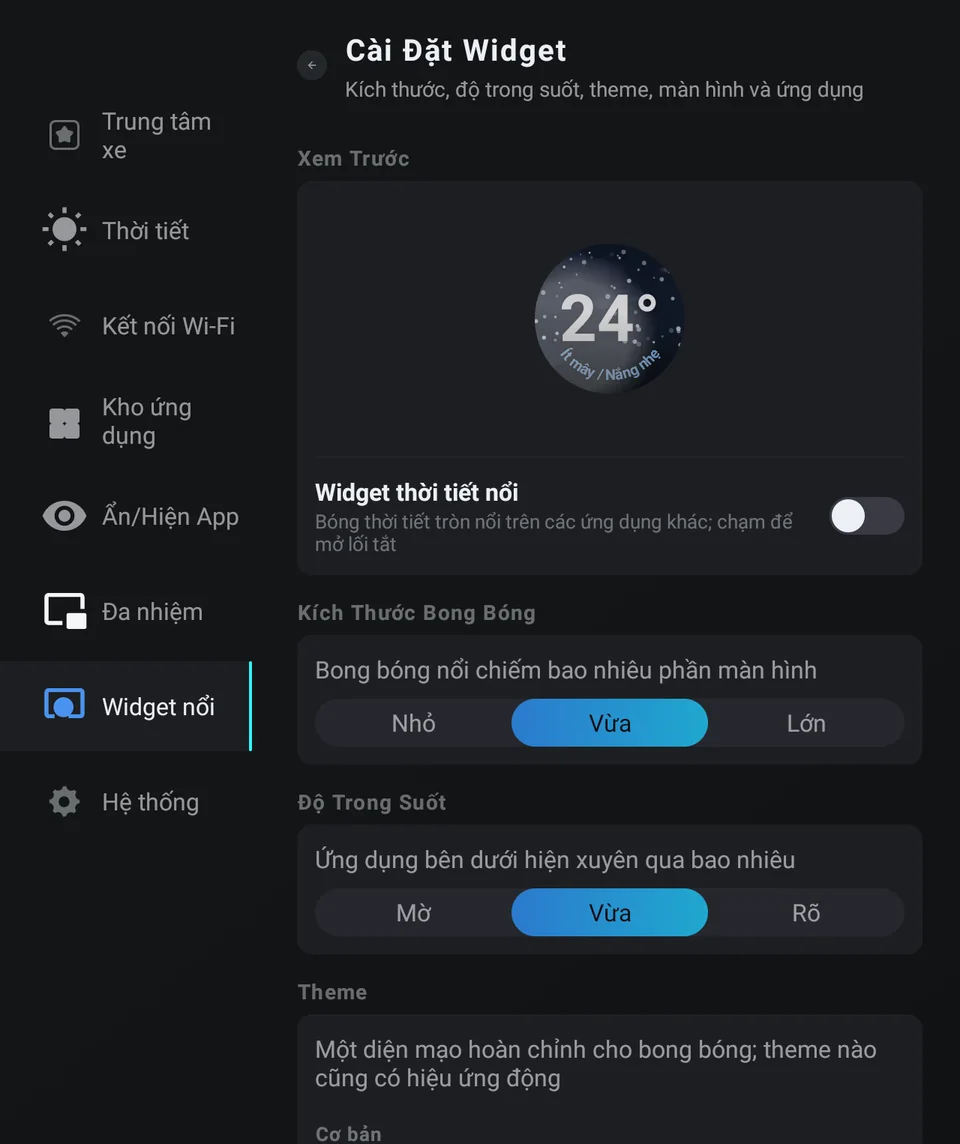
Widget Customisation

Tune the bubble so it's easy to read without covering what's underneath.

  • Live preview of every change
  • 3 sizes and 3 transparency levels
  • 15+ animated themes: Sky, Frosted, Air, Dashboard…
  • Choose which screens and apps appear on the ring
Freeform

Floating-Window Multitasking

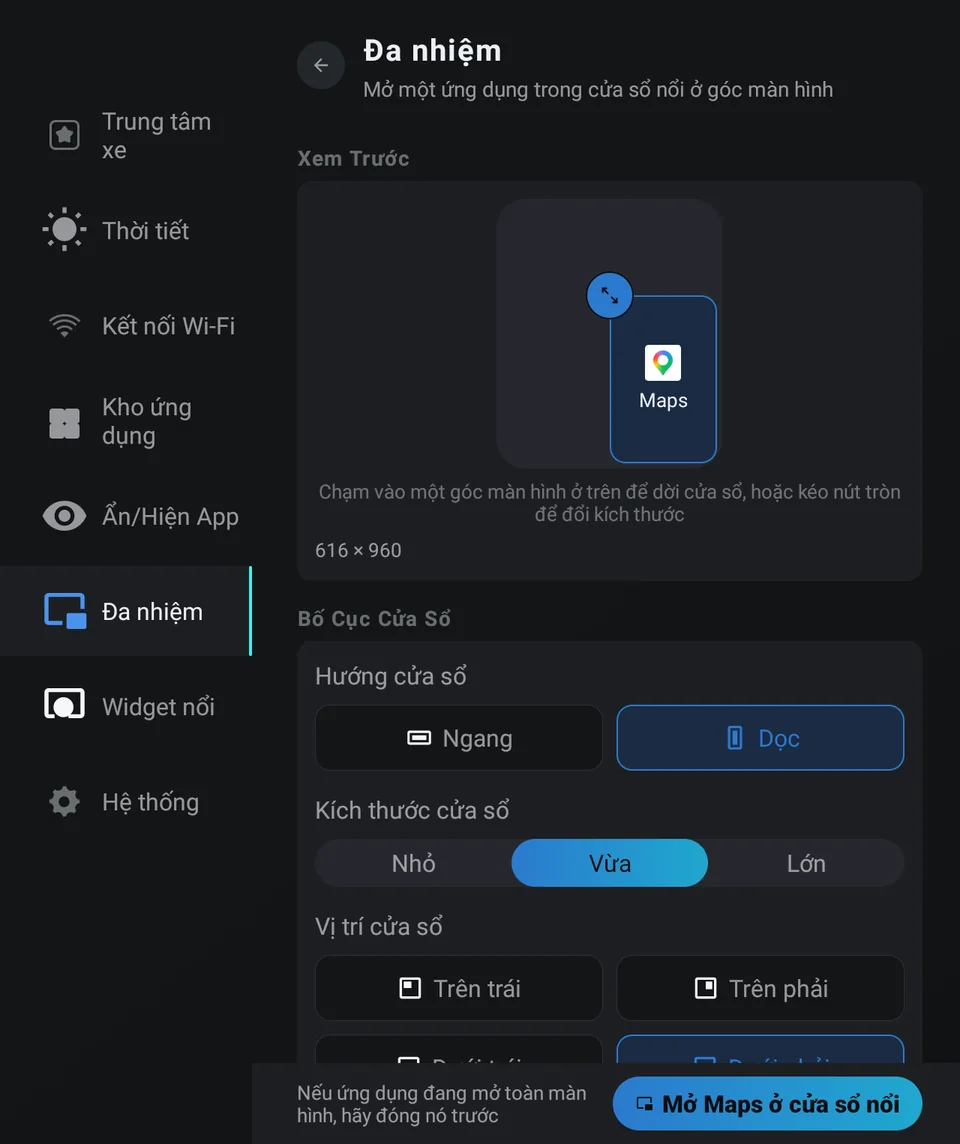
Open an app in a floating window in a corner of the screen — e.g. maps on top of video or music.

  • Turn on freeform windows with one tap
  • Pick landscape/portrait, size and one of 4 corners
  • Drag handle to resize right on the window
  • Keep the window on top while switching apps
  • Pin the layout to the floating widget for quick relaunch
MODULE 03 MODULE 03 · GESTURE CONTROL

Control the Car with Gestures

Swipe with several fingers anywhere on the screen to adjust climate and seats without hunting for a button — even with maps or music open.

Multi-touch

Multi-Finger Gestures

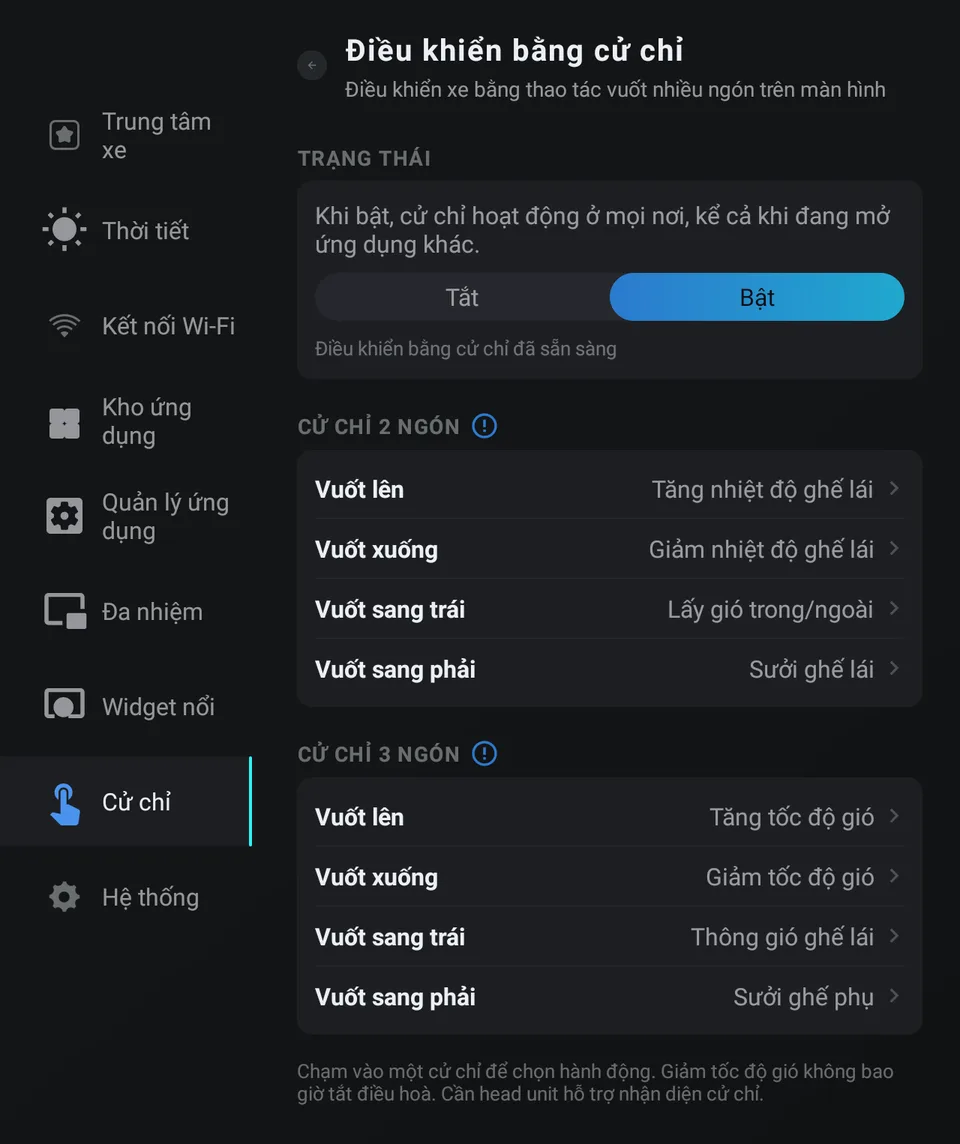
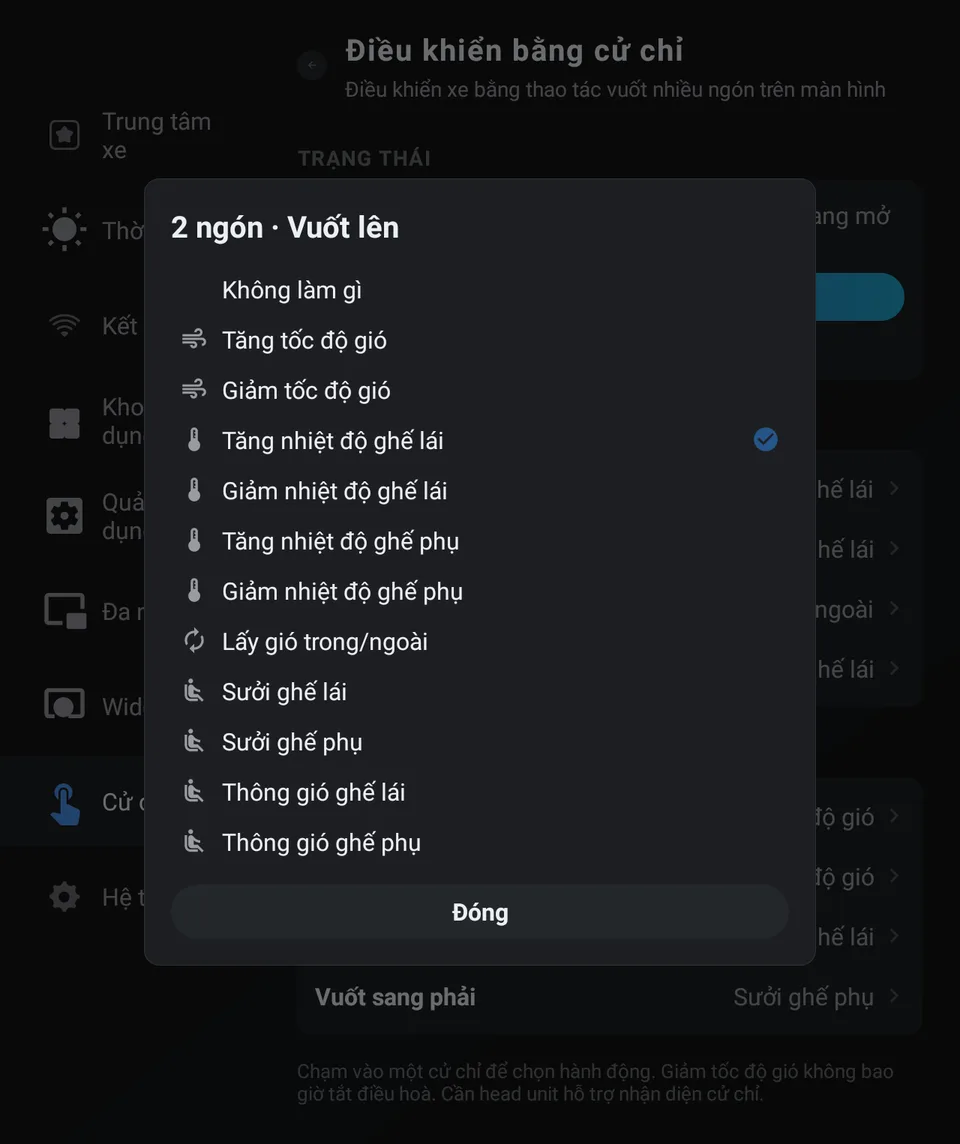
Swipe with 2 or 3 fingers in four directions to control the car. Gestures work everywhere, even while another app is open.

  • 8 gestures: 2-finger and 3-finger swipes, 4 directions each
  • One tap to switch on or off; starts again by itself after the car boots
  • Animated guide showing how each gesture is made
  • Default: swipe 3 fingers up/down to raise/lower fan speed
Custom Actions

An Action for Every Gesture

Each gesture does one thing of your choosing — or nothing at all.

  • Fan speed up/down
  • Temperature up/down, separately for driver and passenger
  • Switch between recirculation and fresh air
  • Seat heating and ventilation for driver and passenger
  • Available actions depend on how the car is equipped
Live Feedback

Instant On-Screen Feedback

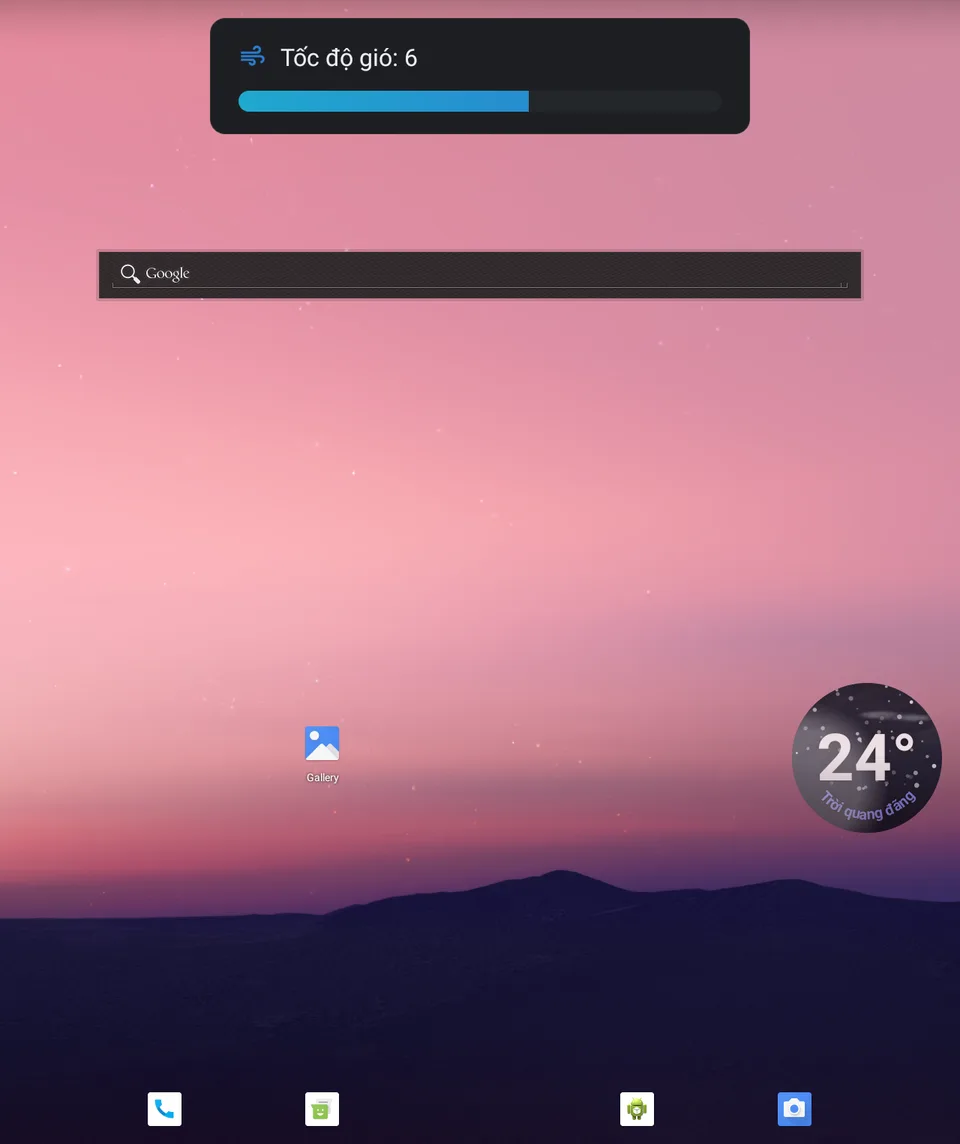
After each gesture a small card at the top of the screen shows what happened, then fades away.

  • Shown over the app you're in — no need to leave maps or music
  • Level bar for fan speed, temperature and seat level
  • Follows the app's language and light/dark theme
  • Safe by design: if the car's current state can't be read, no command is sent
MODULE 04 MODULE 04 · TRIP LOG

Trips: Distance, Fuel & Cost

Tap Start when you set off and Finish when you arrive. JaecooApp reads the figures straight from the car to tell you how far each trip went, how much fuel it used and what it cost.

Live Trip

Live trip recording

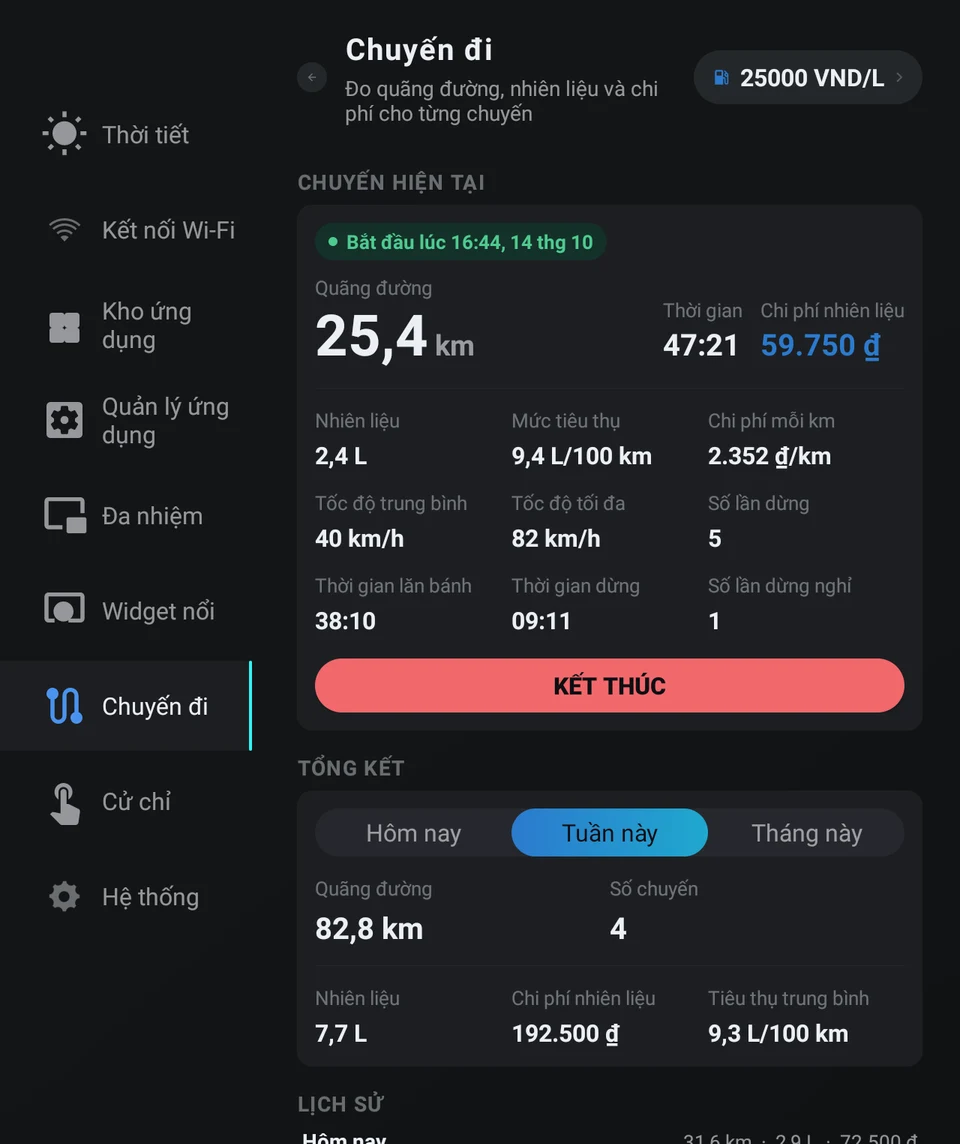
One large figure for distance, with time and fuel cost beside it, updated continuously while you drive.

  • 12 figures: fuel used, consumption in L/100 km, cost per km, average and top speed, driving and stopped time, stops and rest stops
  • Keeps recording in the background — even when you leave the screen or switch the engine off and on — until you tap Finish
  • An ongoing notification shows the distance, fuel and cost of the running trip
  • Enter the fuel price and pick one of 13 currencies to work out the cost
  • Available figures depend on the data the car provides
Summary & History

Summary & trip history

See how far you drove and what it cost, by day, week or month.

  • Today / This week / This month summary: distance, number of trips, fuel, cost and average consumption
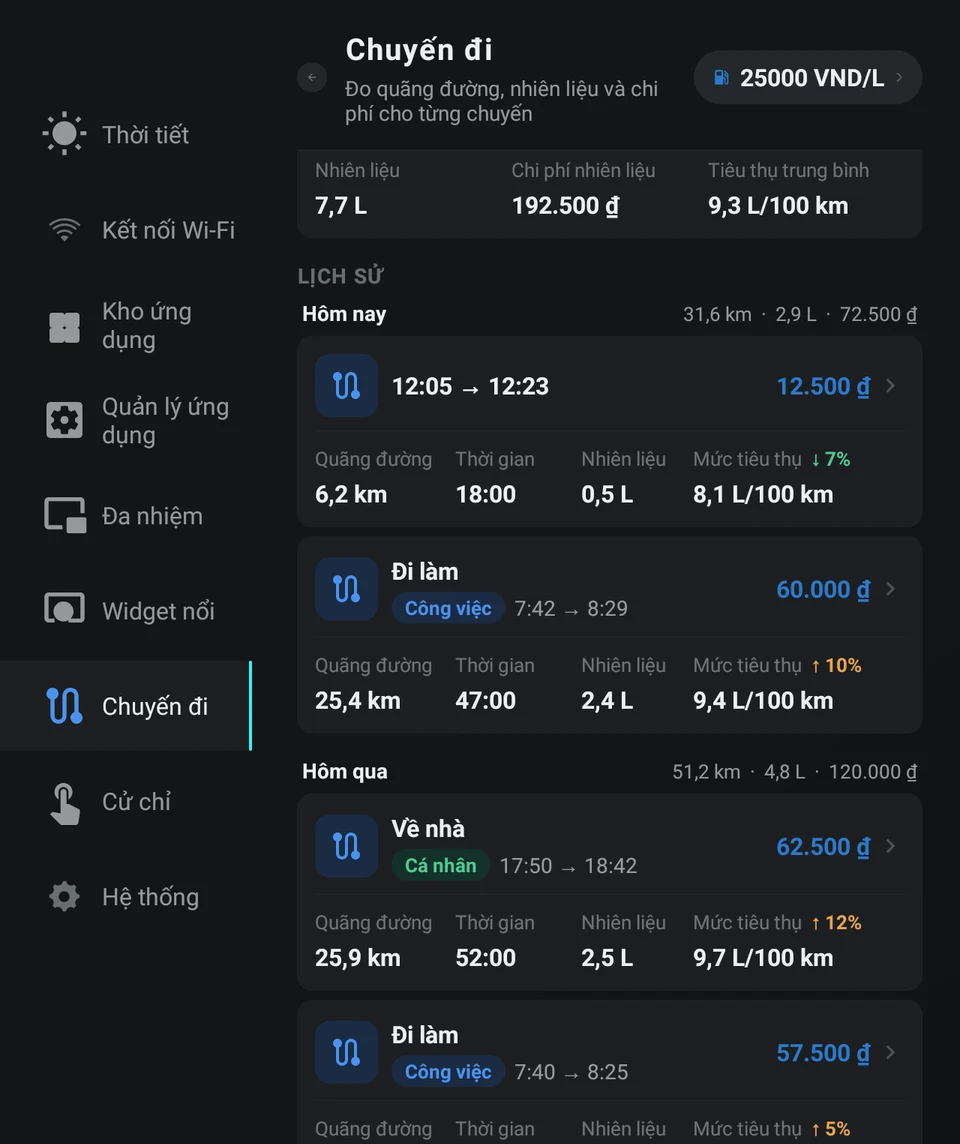
  • History grouped by day, with each day's total distance, fuel and cost
  • Every trip shows its distance, duration, fuel and consumption
  • An ↑/↓ arrow shows by what percentage a trip used more or less than your usual
Trip Details

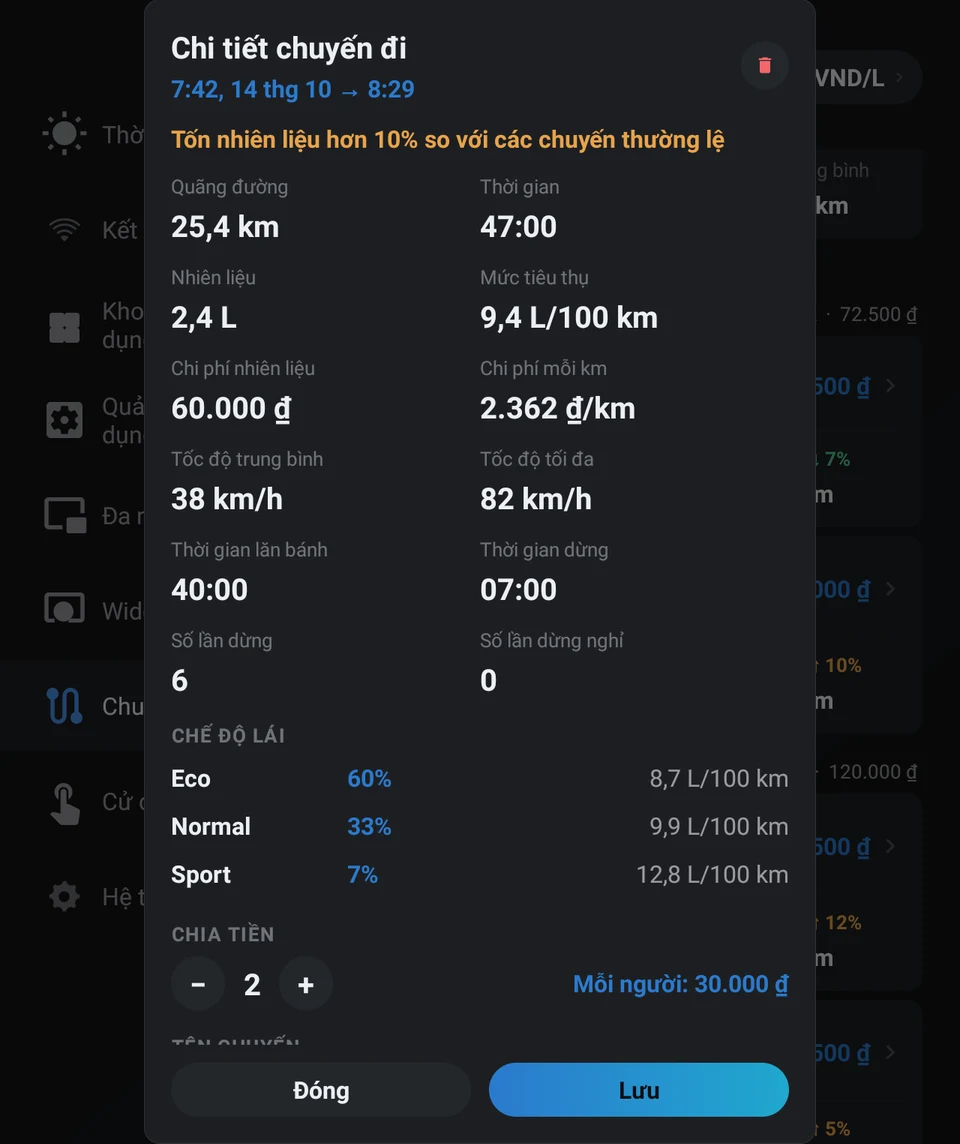
Details for every trip

Tap a trip to see all its figures, name it and split the fuel cost.

  • Share of distance and consumption per drive mode: Eco / Normal / Sport
  • Split the fuel cost between up to 9 people
  • Name the trip, label it Work / Personal and add a note
  • Compare its consumption with your usual trips
  • Delete a trip from the history, with confirmation
MODULE 05 MODULE 05 · IN-CAR APP STORES

App Stores & App Management

Install, update and organise apps directly on the car screen — no computer or cable needed. Popular apps: ad-free YouTube, YouTube Music, Vietmap.

Jaecoo Store

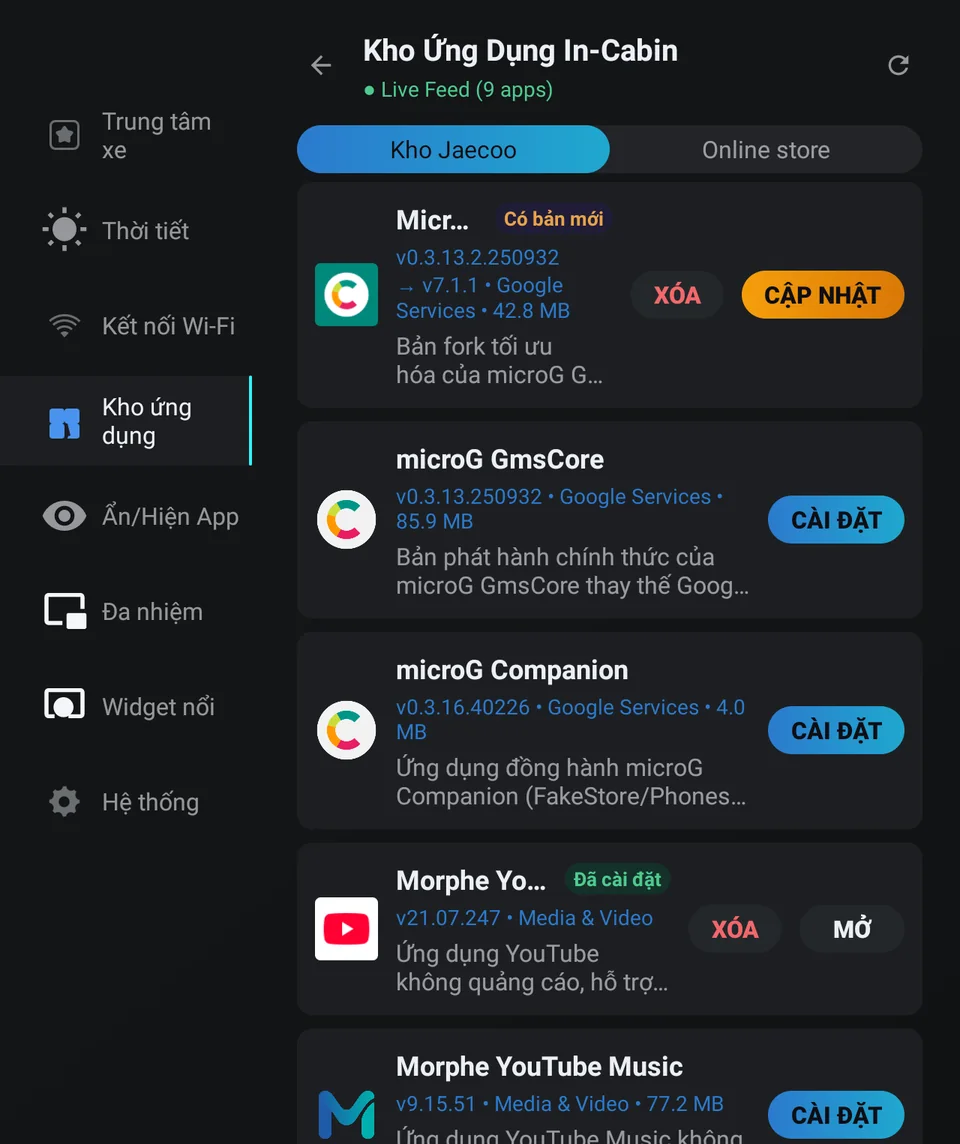
Jaecoo Store

A curated app store for the car screen, synced live from the Jaecoo server.

  • microG, YouTube Morphe/ReVanced, Google Maps, Vietmap and more
  • Install, update, open and uninstall apps right in the car
  • “Update available” badge when a newer version is out
  • Silent installs with no confirmation when Device Owner is granted
Google Play

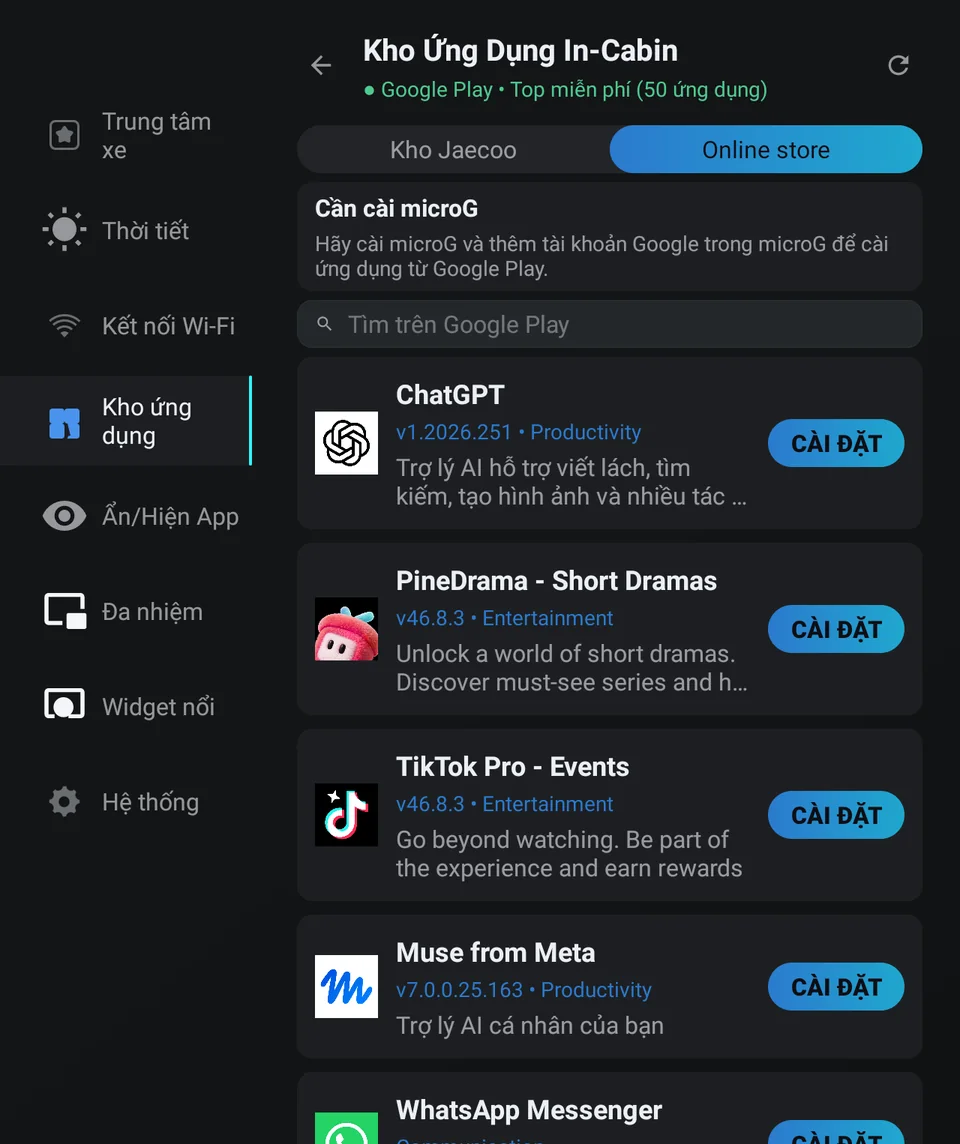
Google Play Online Store

Search and install free Google Play apps in the car using the Google account signed in to microG.

  • Top free apps list
  • Search the whole Google Play catalog
  • Downloads straight from Google Play — no Play Store needed
  • Free apps only for now; paid apps and apps with OBB files aren't supported yet
Device Owner

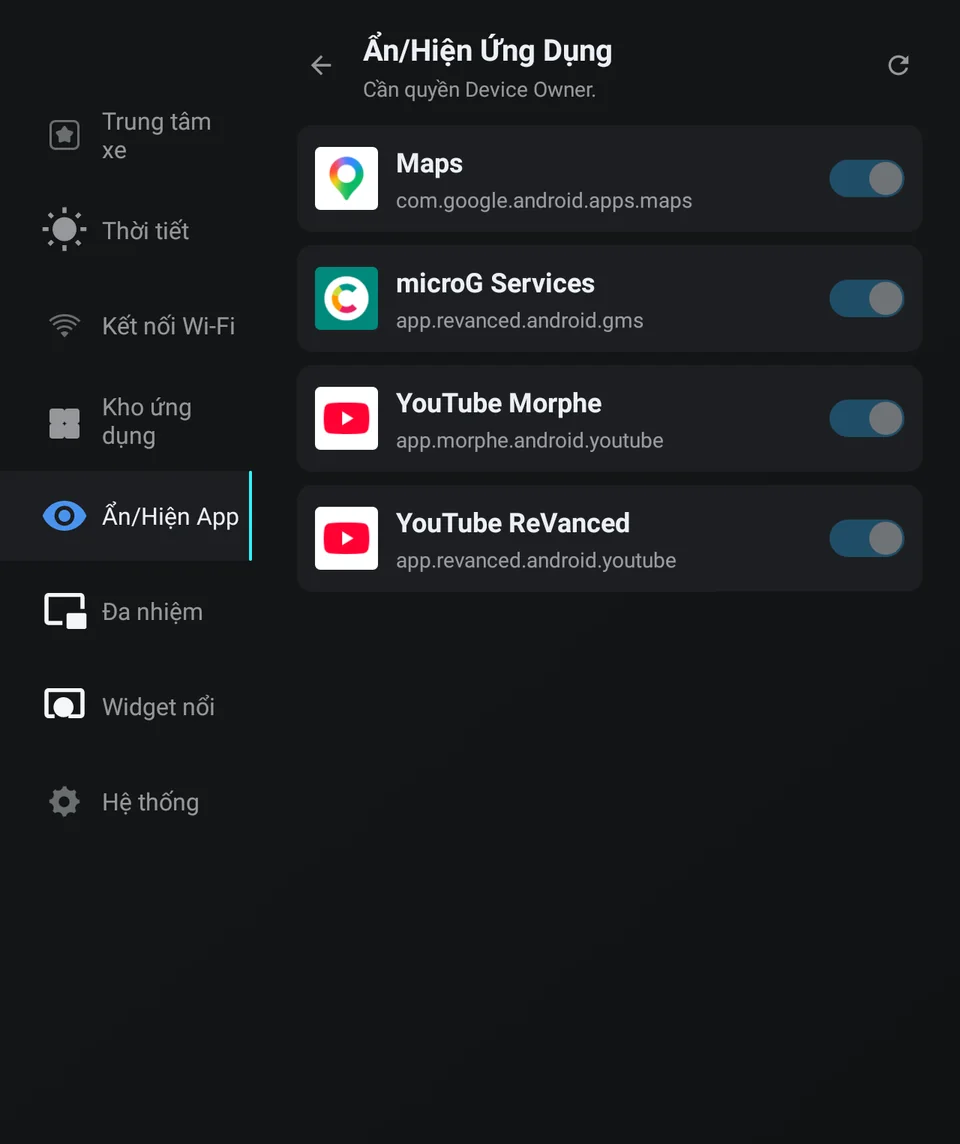
App Visibility

Declutter the car's home screen by hiding apps you don't use, and bring them back any time.

  • One switch per app
  • Hidden apps aren't uninstalled — their data stays intact
  • Requires Device Owner, enabled when installing JaecooApp with the WebUSB installer
MODULE 06 MODULE 06 · CONNECTIVITY & SYSTEM

Wi-Fi & System Settings

Get online and tailor JaecooApp to you, always on the latest version.

Wi-Fi

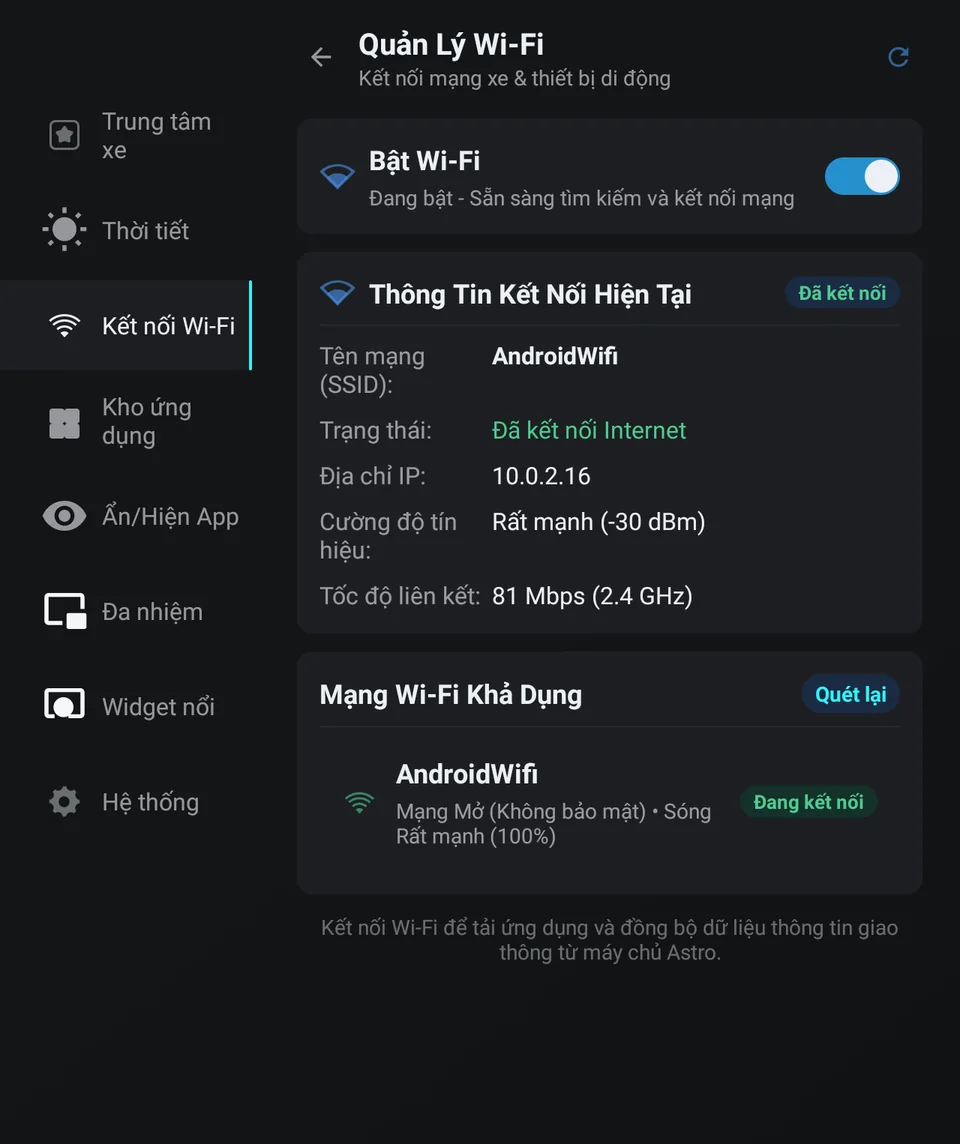
Wi-Fi Management

Turn Wi-Fi on or off, scan and connect inside JaecooApp without opening the car's system settings.

  • Connection details: network name, internet status, IP address, signal (dBm), link speed and band
  • Nearby networks with signal level and security type (WPA2/WPA3/WEP)
  • Enter the password and connect straight from the list
OTA

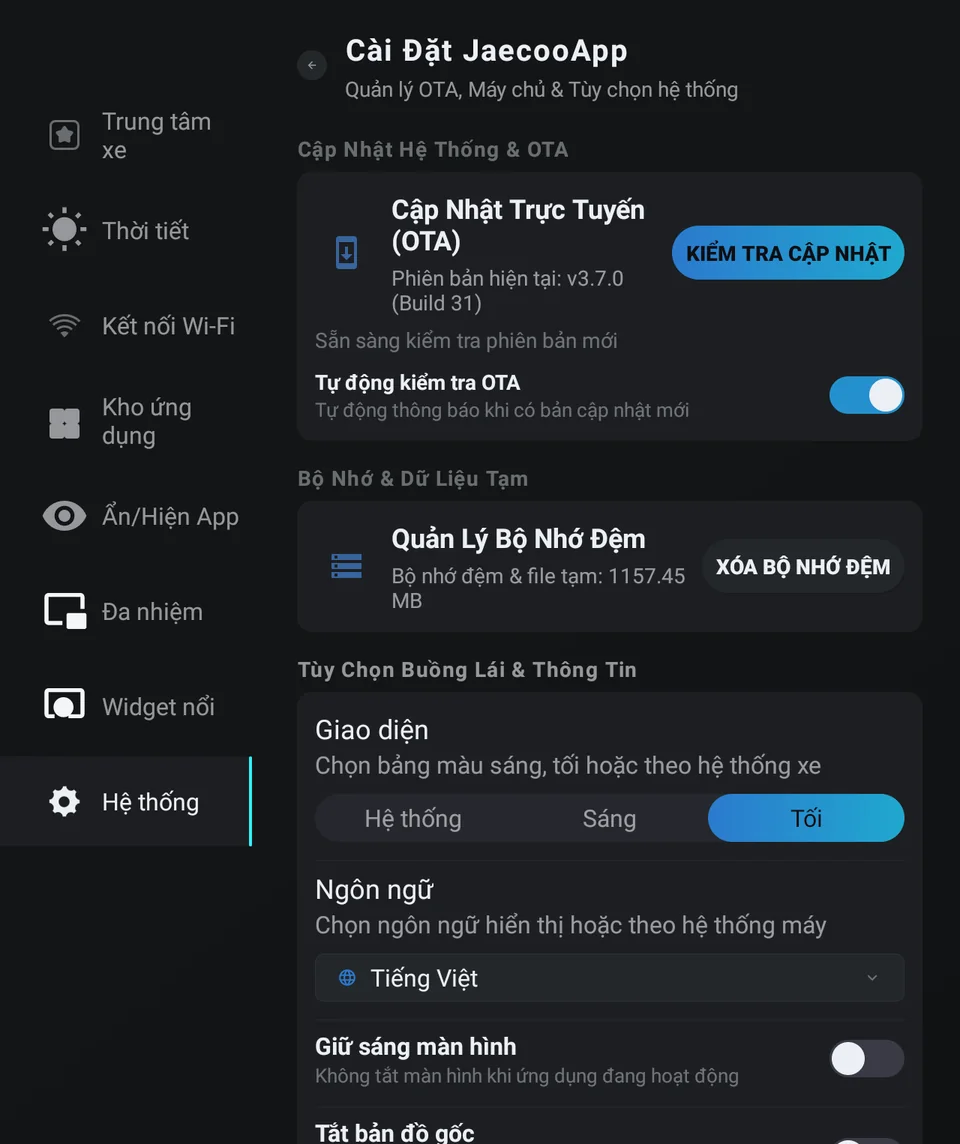
Settings & OTA Updates

Every JaecooApp option in one place, plus wireless self-updates.

  • Check, download and install new versions in the car; get notified automatically
  • See and clear cache and temporary files
  • Light/Dark/System theme and 11 languages
  • Keep the screen on and disable the car's native maps (requires Device Owner)
MODULE 07 MODULE 07 · CAR WALLPAPER

Home Screen Wallpaper

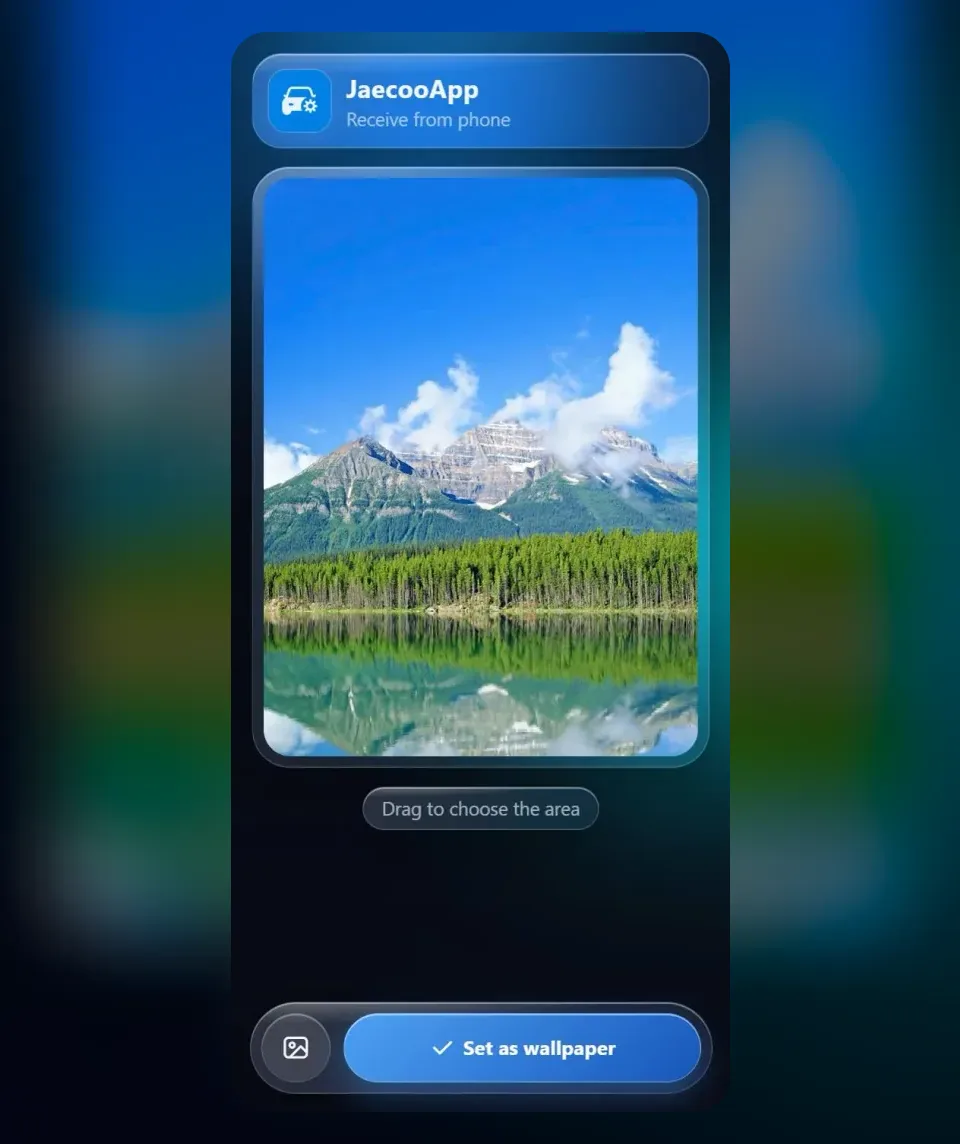
Change the car's home-screen wallpaper right on the display: pick one from the JaecooApp collection, send your own photo from your phone with a QR code, or choose one from a USB drive. Every picture is cropped to fit the car's screen.

Home Screen

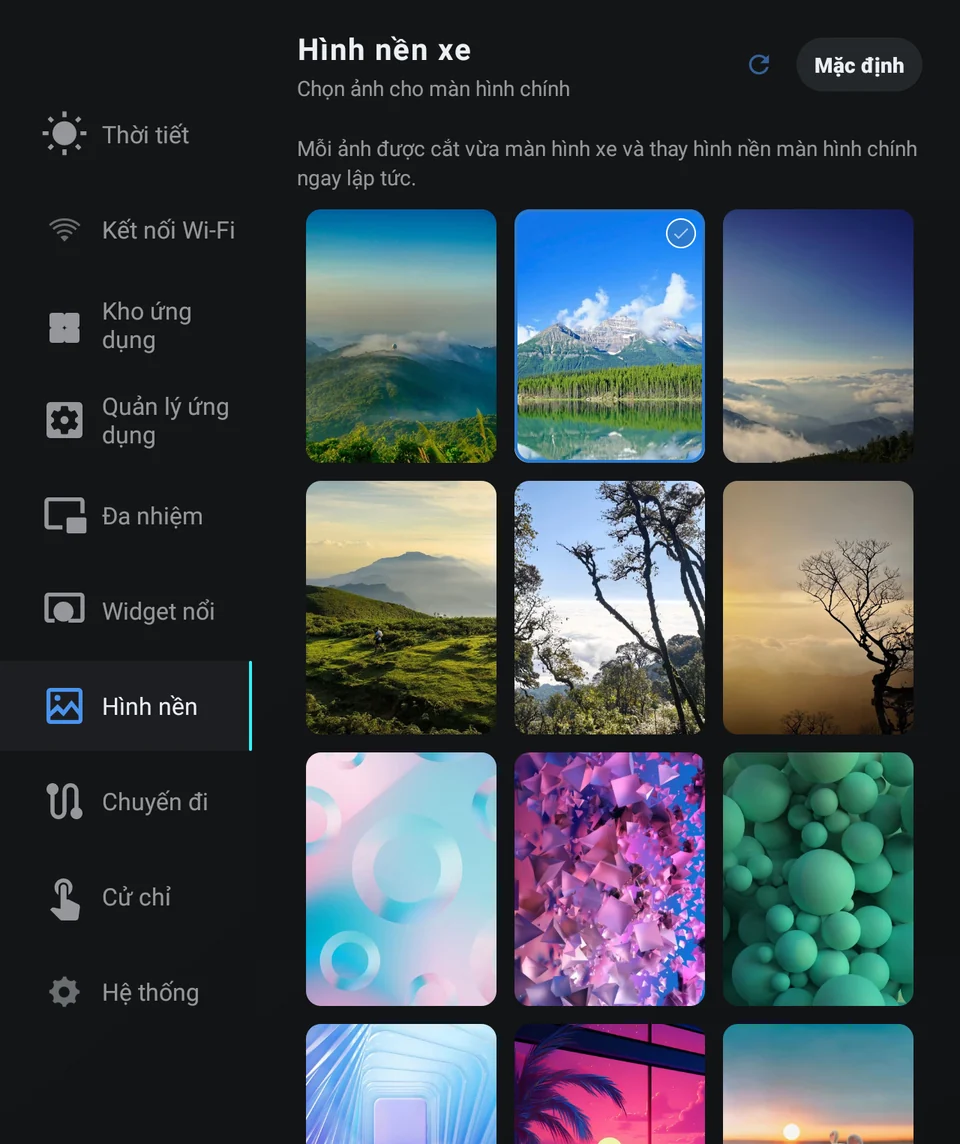
Wallpaper collection

A grid of portrait pictures made for the car's screen; the one in use has a ring and a tick.

  • 40 images at 1440×1920, the exact size of the J7 screen: nature, sunsets, 3D abstracts
  • One tap and the home screen changes straight away, no restart needed
  • The Default button brings back the car's original wallpaper at any time
  • The list still shows offline; more pictures are added on the server
Preview

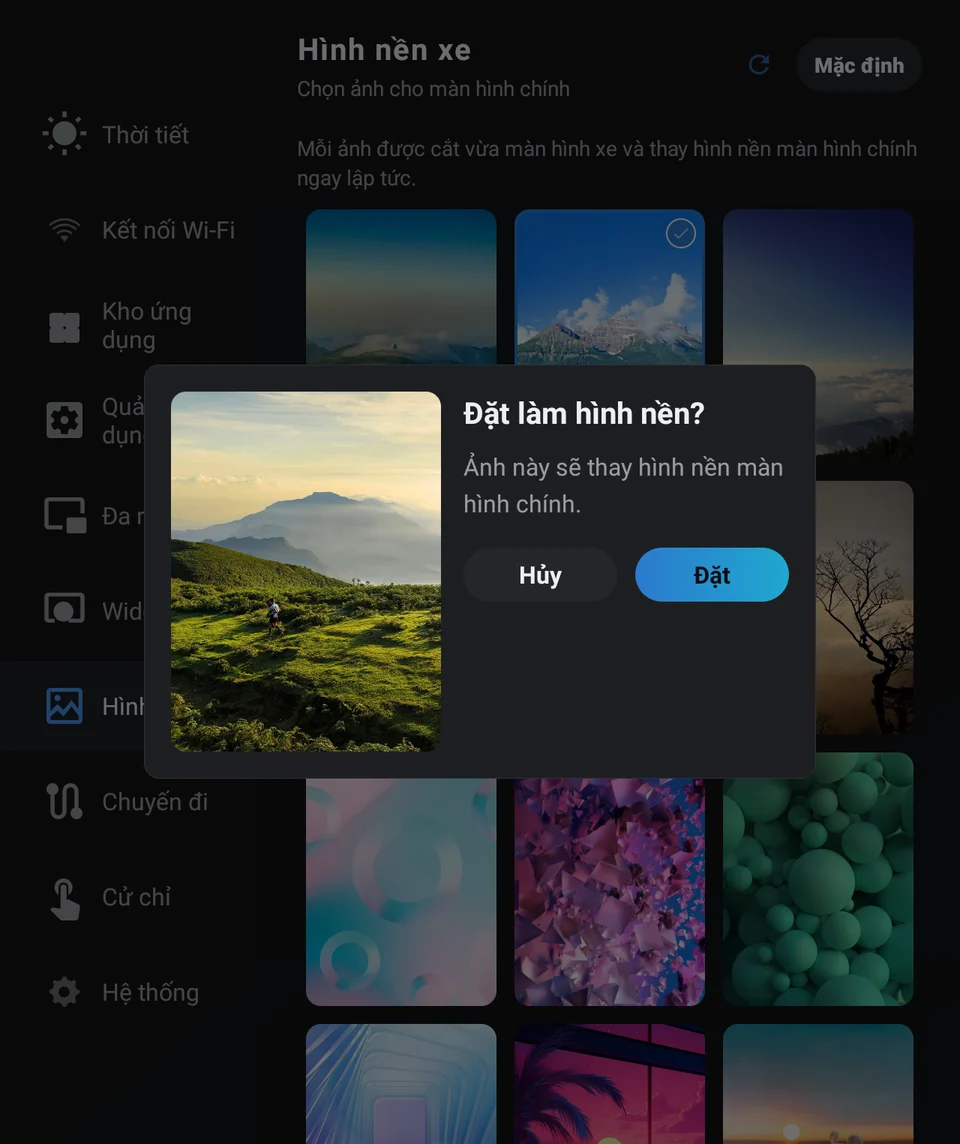
Preview before you set

See the picture at the car screen's exact proportions before it replaces the wallpaper.

  • Cropped exactly as it will appear on the home screen
  • Pictures already the right size are written as they are, never re-compressed
  • The old wallpaper is only replaced once the new picture has been checked to open, so the home screen never breaks
  • Needs file access, granted when you install through the web installer
Phone · USB

Your own photo

Send a photo from your phone with a QR code, or pick one from a USB drive.

  • Scan the QR code on the car and choose a photo in the phone's browser, no app to install
  • Drag to choose the area in a frame shaped like the car's screen, then set it from the phone
  • Or pick a JPG/PNG from a USB drive; portrait phone photos are turned upright
  • Photos go straight to the car over the same Wi-Fi, through no server; each QR code works only for the phone that scanned it
COMPARISON

Stock screen vs With JaecooApp

What JaecooApp adds to the Jaecoo / Omoda center screen.

Feature
OEM Stock head unit
NÂNG CẤP TỐI ƯU With JaecooApp
Installing Android apps
✕ No app store, APK installs restricted
✓ Curated Jaecoo store, install & update in the car
Google Play
✕ Not available
✓ Search and install free apps via microG
Multitasking
✕ Full-screen apps only
✓ Resizable floating window in a screen corner
Info on top of other apps
✕ Not available
✓ Floating weather bubble with a shortcut ring
Home screen customisation
✕ Can't hide apps or native maps
✓ Hide/show apps, disable native maps
GET STARTED TODAY

Ready to elevate your smart cabin experience?

Takes less than 5 minutes to unlock ADB and install JaecooApp directly through your web browser.