1. Prepare what you need
Have everything ready before getting in the car so you do not have to interrupt the process halfway through.
- Laptop or Phone: An Android phone, a Windows 10/11 laptop, or a MacBook with Google Chrome browser.
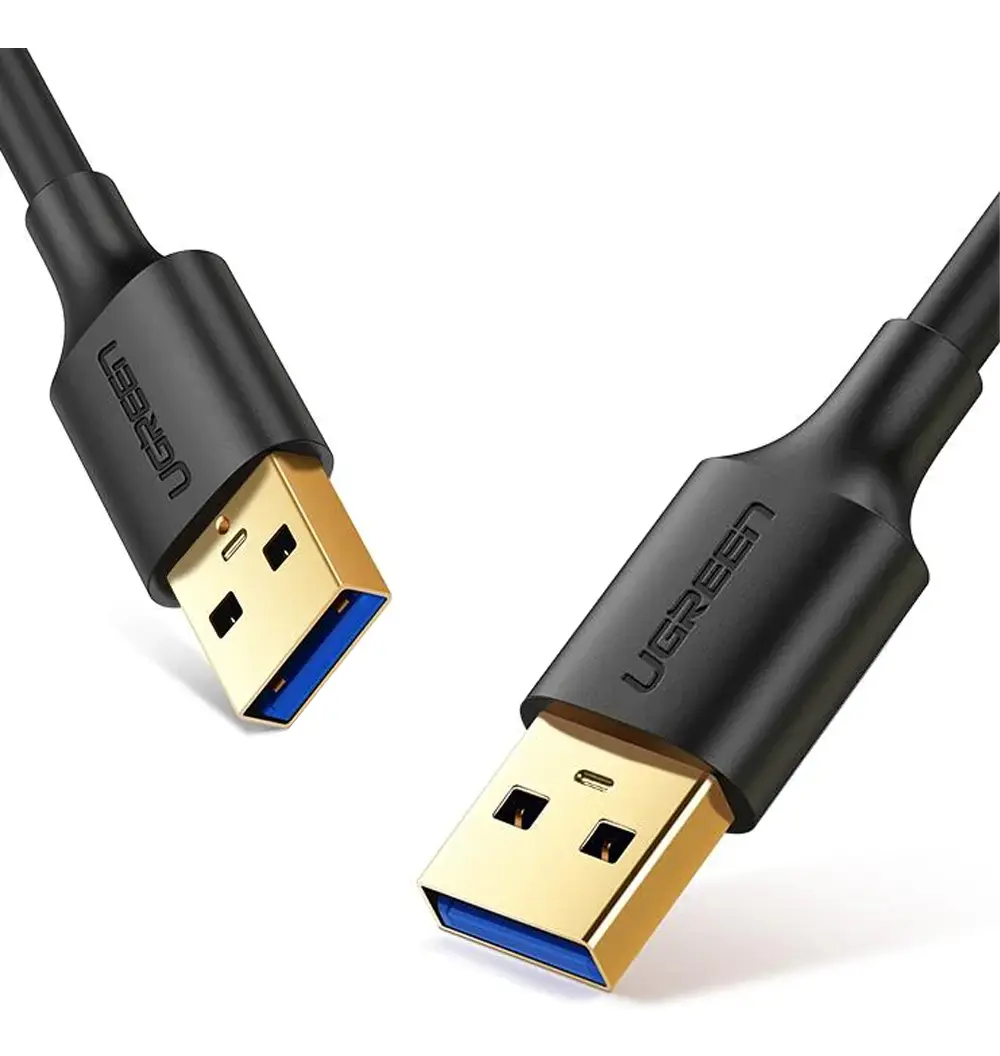
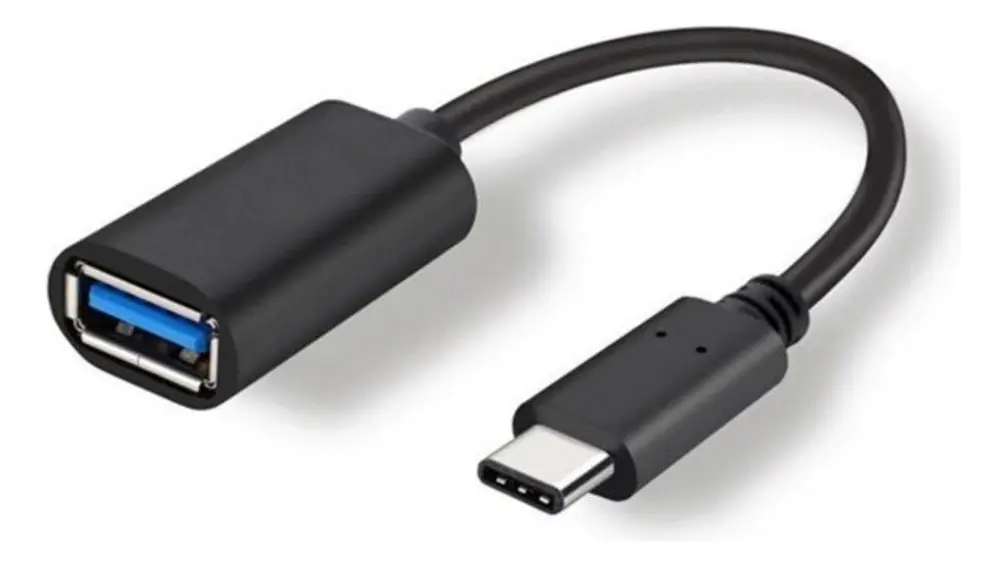
- USB-A ↔ USB-A Data Cable: A USB-A to USB-A data cable. If your laptop/phone only has USB-C ports, use a USB-C to USB-A OTG adapter.
- Notice on Vehicle Port Location: Plug into the vehicle's USB-A port used for Android Auto / Apple CarPlay. The USB-C port is for charging only and does not carry ADB data.
- Disable All Bluetooth Connections on the Vehicle: Before you start, disconnect all paired devices and turn off Bluetooth on the vehicle's head unit. This is required.
2. Open the Engineering Menu & Calculate Unlock Password
With the car on, complete these steps on the head unit central screen:
- 2.1 Open the vehicle head unit, tap Settings → System.
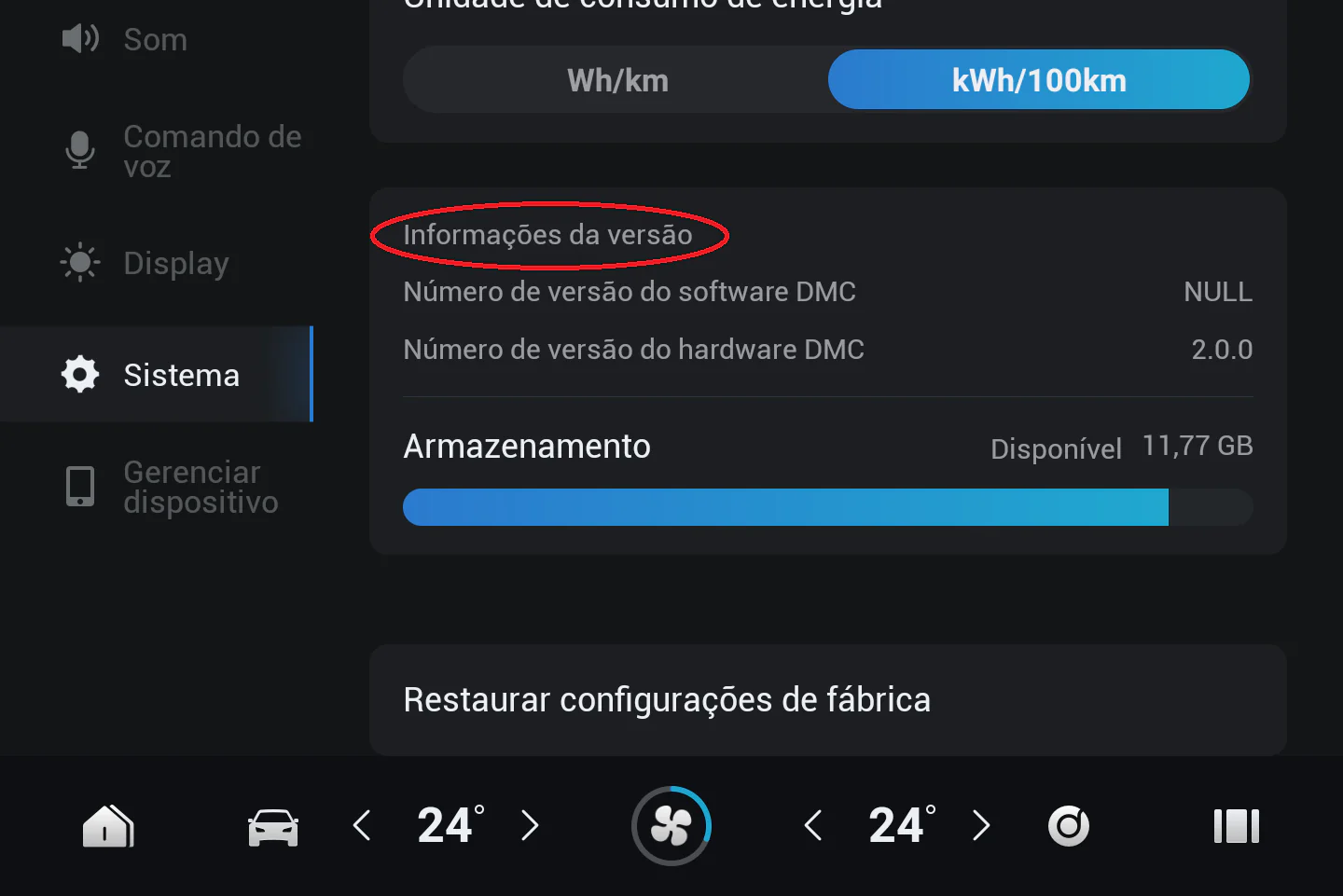
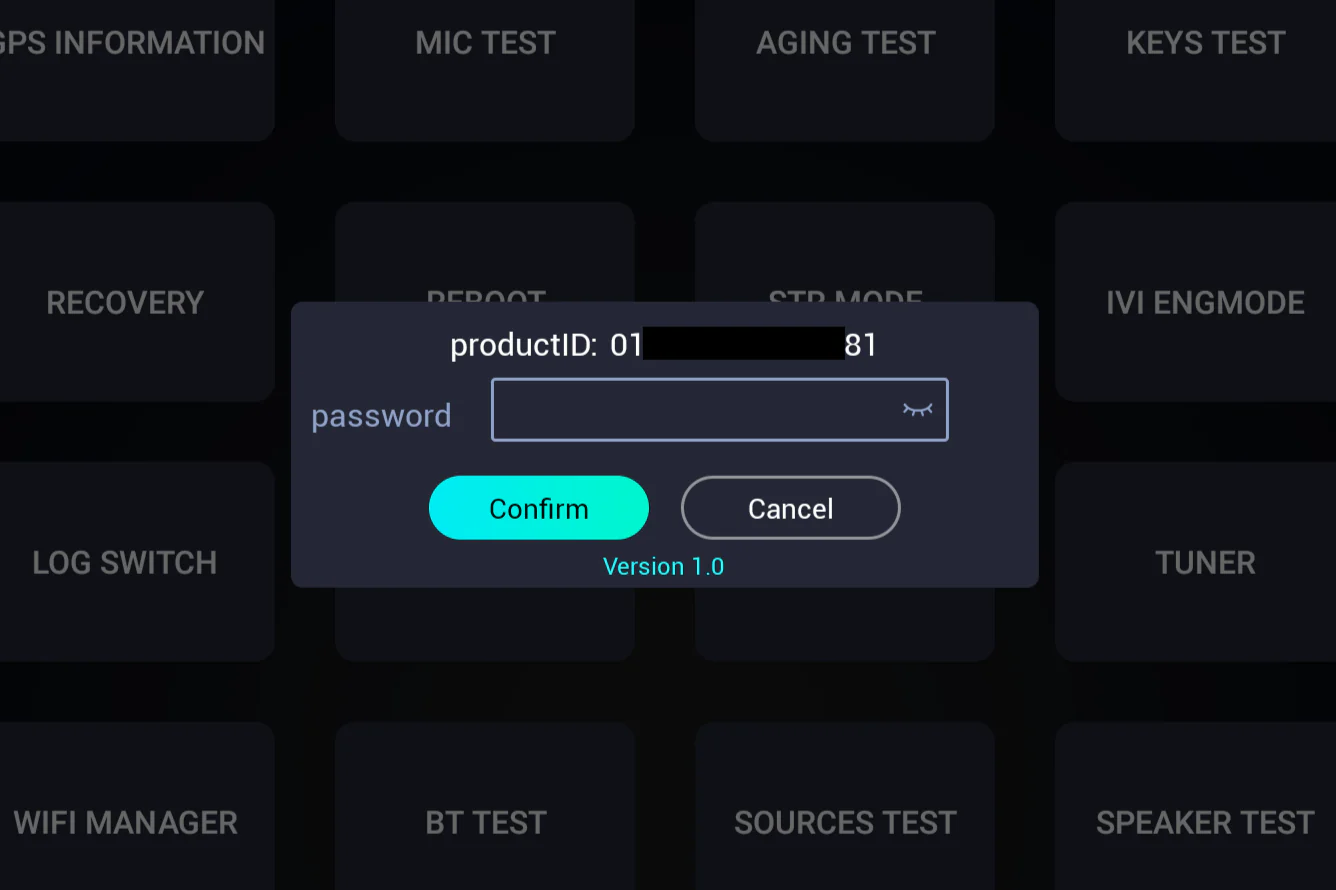
- 2.2 Under Version Information, tap the title 10 times repeatedly until the Engineering Menu appears.
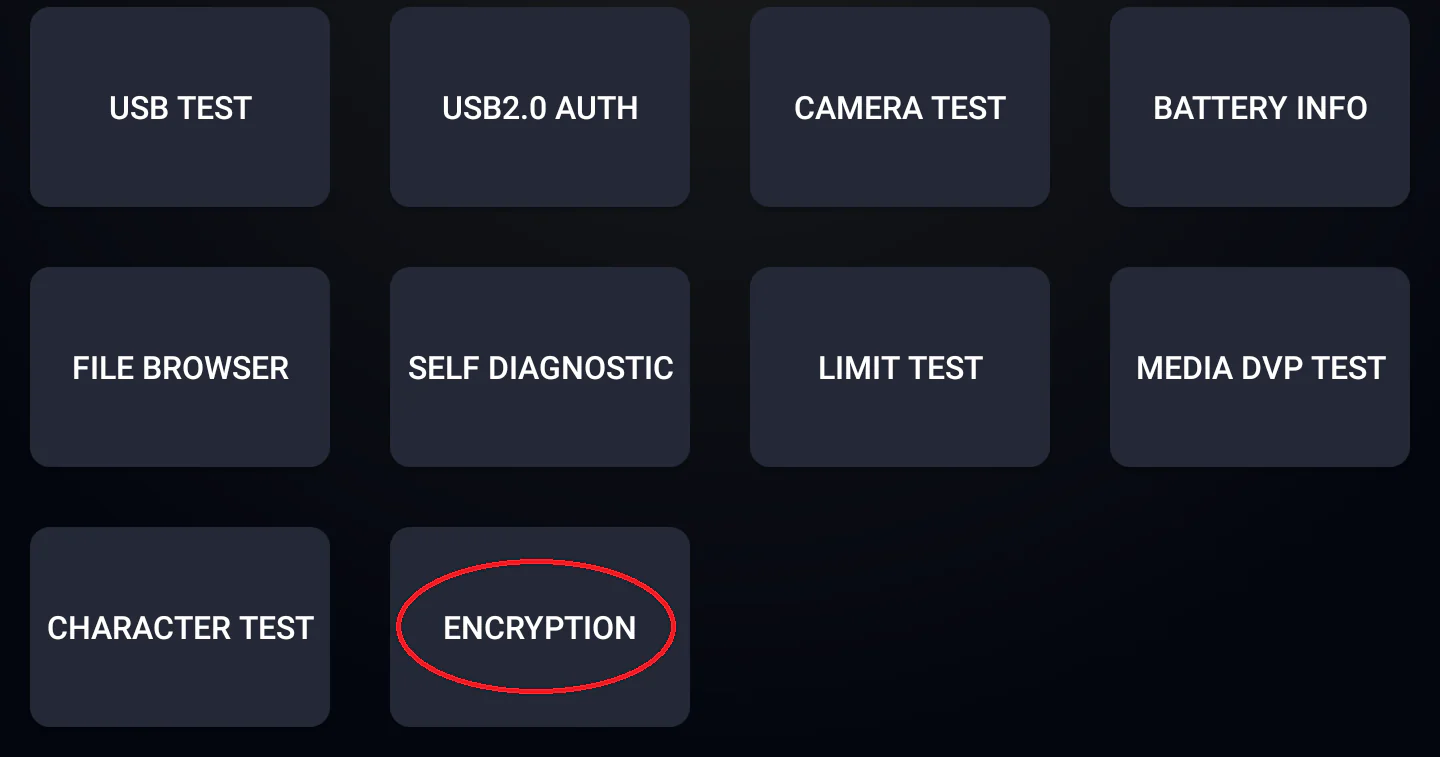
- 2.3 In the Engineering Menu, tap "Encryption".
- 2.4 A password window will appear. Check whether it shows Version 1.0, Version 2.0, or Version 3.0 before using the calculator below.
Head Unit Encryption Password Generator
Select the version shown on your car display and enter the required parameters. Values are calculated locally in your browser with zero data telemetry.
3. Enable ADB (ADB SWITCH)
After entering the correct password in Step 2, the Engineering Menu is unlocked.
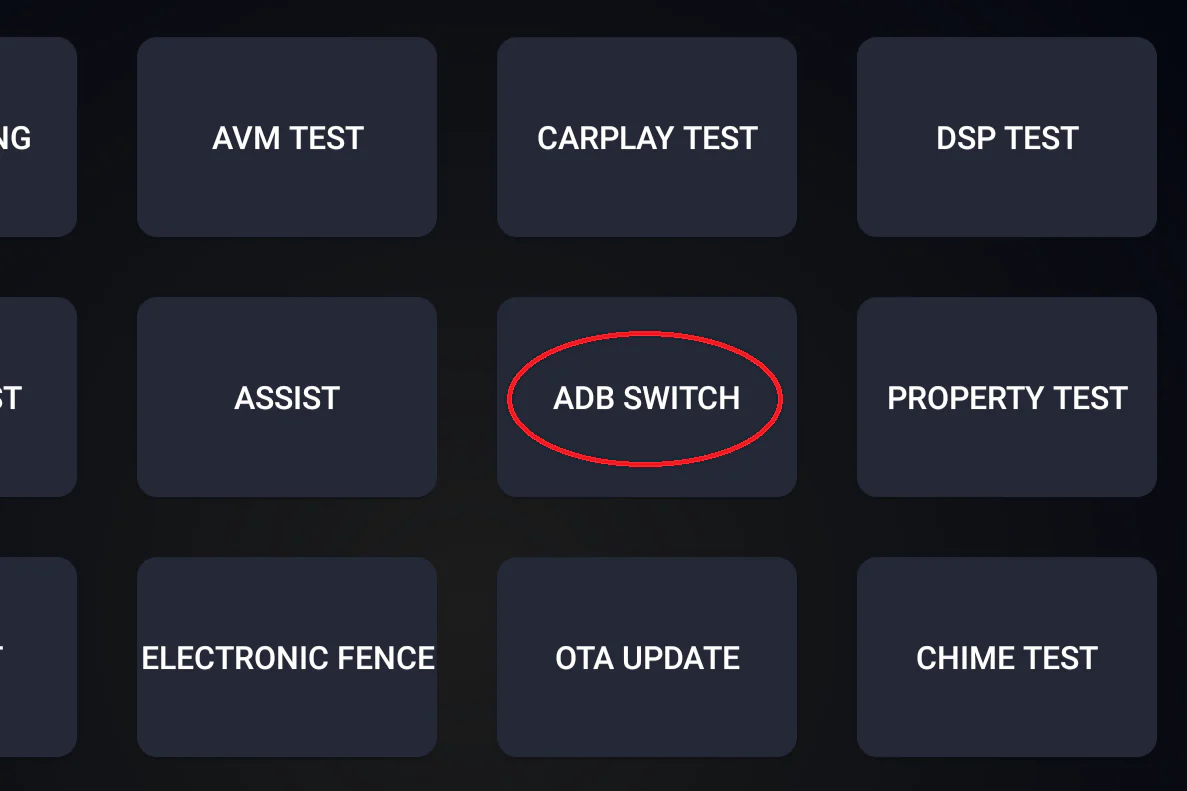
- 3.1 Find and tap “ADB SWITCH” in the engineering menu.
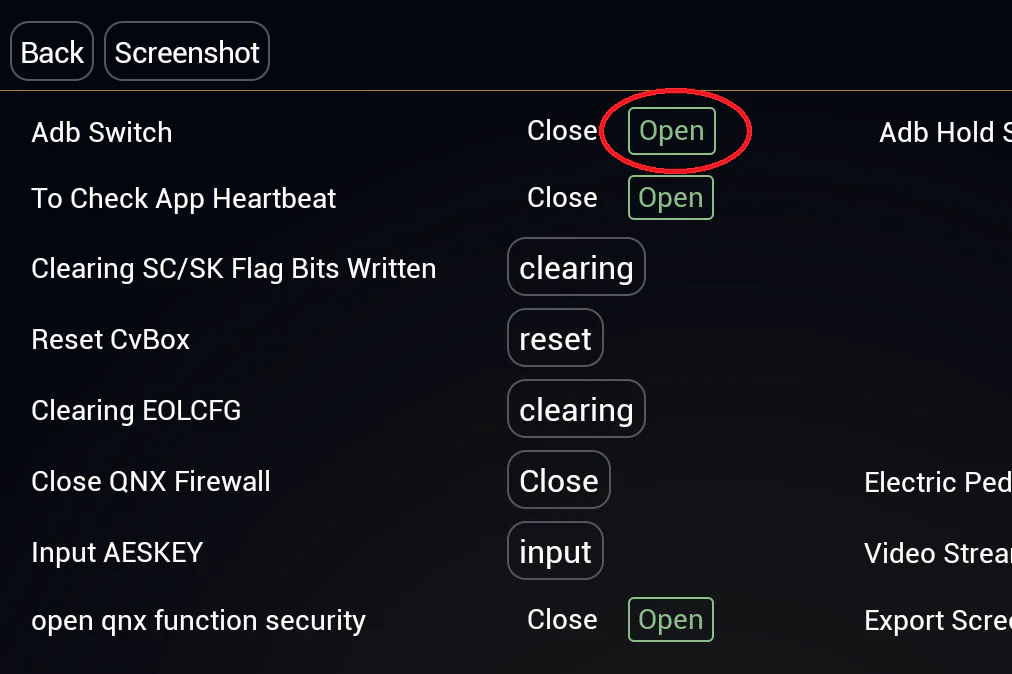
- 3.2 On the “Adb Switch” option, tap “Open” (Enable).
- 3.3 Connect the USB cable between your computer/phone and the vehicle USB-A port. The installer or adb client will detect the head unit.
Video Guide: Enabling ADB
If you prefer a visual guide, watch the complete video tutorial below.
JaecooApp Installation Video
Once ADB is enabled, watch the video below to install JaecooApp on the vehicle's head unit.
1. Prepare what you need
Have everything ready before getting in the car so you do not have to interrupt the process halfway through.
- Laptop or Phone: An Android phone, a Windows 10/11 laptop, or a MacBook with Google Chrome browser.
- USB-A ↔ USB-A Data Cable: A USB-A to USB-A data cable. If your laptop/phone only has USB-C ports, use a USB-C to USB-A OTG adapter.
- Notice on Vehicle Port Location: Plug into the vehicle's USB-A port used for Android Auto / Apple CarPlay. The USB-C port is for charging only and does not carry ADB data.
- Disable All Bluetooth Connections on the Vehicle: Before you start, disconnect all paired devices and turn off Bluetooth on the vehicle's head unit. This is required.
2. Open the Engineering Menu & Calculate Unlock Password
With the car on, complete these steps on the head unit central screen:
- 2.1 Open the vehicle head unit, tap Settings → System.
- 2.2 Under Version Information, tap the title 10 times repeatedly until the Engineering Menu appears.
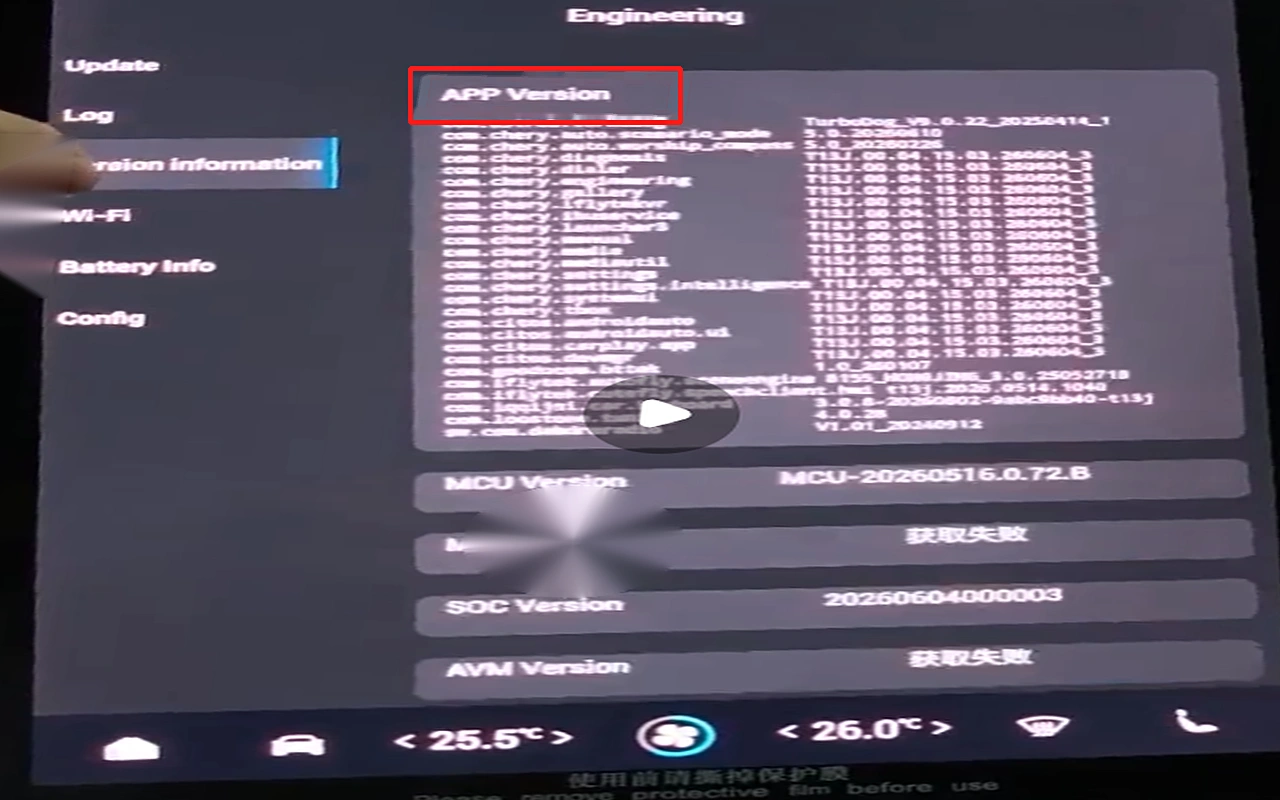
- 2.3 In the Engineering Menu, go to Version Information, tap “APP Version” 10 times repeatedly until the password dialog appears.
- 2.4 Enter the password as the
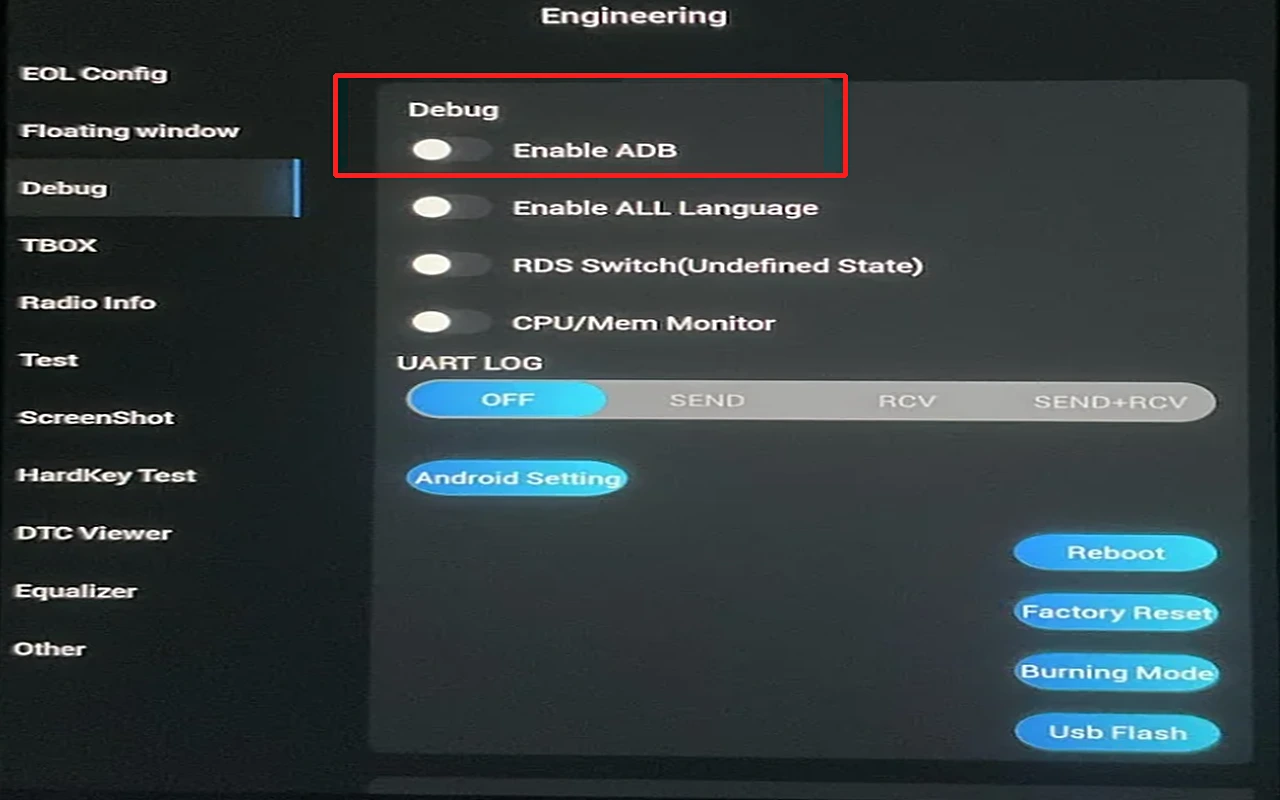
last 6 digitsof the SOC Version (shown below on the car screen) to open the hidden Engineering Menu. - 2.5 Turn on Enable ADB in the Debug section.
- 2.6 Connect the USB cable between your computer/phone and the vehicle USB-A port. The installer or adb client will detect the head unit.
JaecooApp Installation Video
Once ADB is enabled, watch the video below to install JaecooApp on the vehicle's head unit.
1. Prepare what you need
Have everything ready before getting in the car so you do not have to interrupt the process halfway through.
- Laptop or Phone: An Android phone, a Windows 10/11 laptop, or a MacBook with Google Chrome browser.
- USB-A ↔ USB-A Data Cable: A USB-A to USB-A data cable. If your laptop/phone only has USB-C ports, use a USB-C to USB-A OTG adapter.
- Notice on Vehicle Port Location: Plug into the vehicle's USB-A port used for Android Auto / Apple CarPlay. The USB-C port is for charging only and does not carry ADB data.
- Disable All Bluetooth Connections on the Vehicle: Before you start, disconnect all paired devices and turn off Bluetooth on the vehicle's head unit. This is required.
2. Open the Engineering Menu & Calculate Unlock Password
With the car on, complete these steps on the head unit central screen:
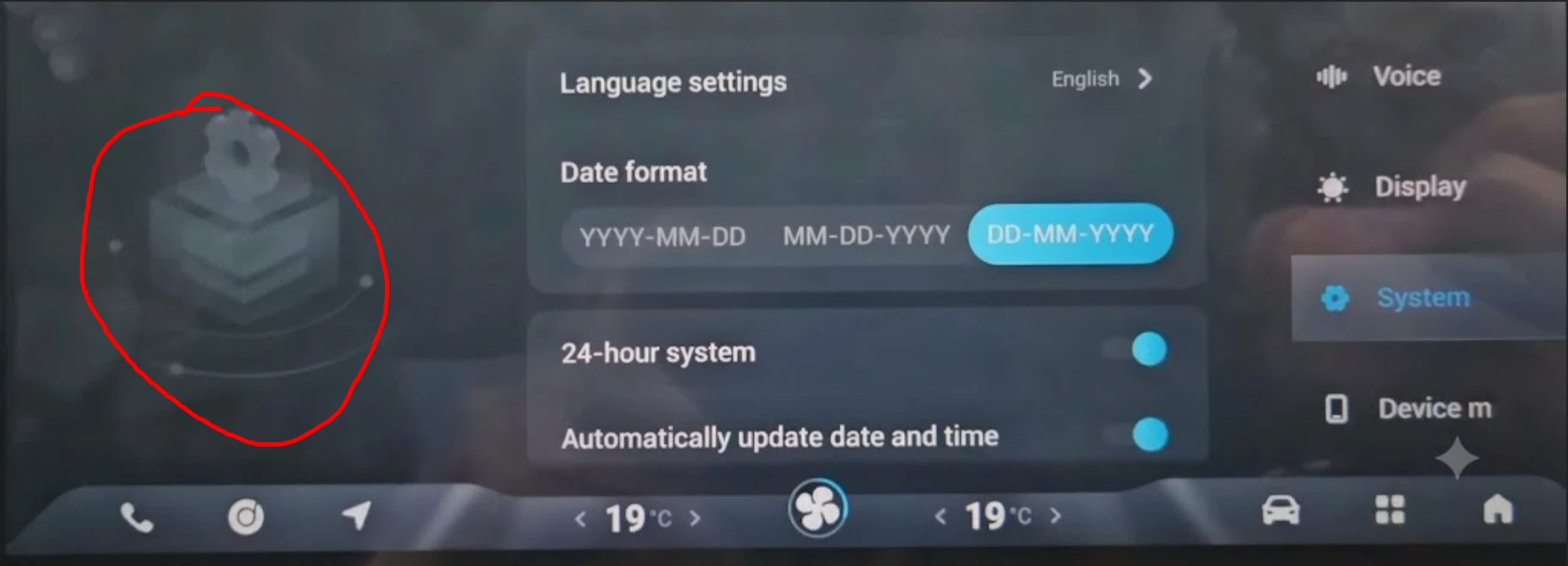
- 2.1 Open the vehicle head unit, tap Settings → System.
- 2.2 Tap the bottom-left corner of the screen 10 times repeatedly (the area circled in red in the picture below) until the Engineering Menu appears.
- 2.3 In the Engineering Menu, tap "Encryption".
- 2.4 A password window will appear. Check whether it shows Version 1.0, Version 2.0, or Version 3.0 before using the calculator below.
Head Unit Encryption Password Generator
Select the version shown on your car display and enter the required parameters. Values are calculated locally in your browser with zero data telemetry.
3. Enable ADB (ADB SWITCH)
After entering the correct password in Step 2, the Engineering Menu is unlocked.
- 3.1 Find and tap “ADB SWITCH” in the engineering menu.
- 3.2 On the “Adb Switch” option, tap “Open” (Enable).
- 3.3 Connect the USB cable between your computer/phone and the vehicle USB-A port. The installer or adb client will detect the head unit.
Video Guide: Enabling ADB
If you prefer a visual guide, watch the complete video tutorial below.
JaecooApp Installation Video
Once ADB is enabled, watch the video below to install JaecooApp on the vehicle's head unit.
1. Prepare what you need
Have everything ready before getting in the car so you do not have to interrupt the process halfway through.
- Laptop or Phone: An Android phone, a Windows 10/11 laptop, or a MacBook with Google Chrome browser.
- USB-A ↔ USB-A Data Cable: A USB-A to USB-A data cable. If your laptop/phone only has USB-C ports, use a USB-C to USB-A OTG adapter.
- Notice on Vehicle Port Location: Plug into the vehicle's USB-A port used for Android Auto / Apple CarPlay. The USB-C port is for charging only and does not carry ADB data.
- Disable All Bluetooth Connections on the Vehicle: Before you start, disconnect all paired devices and turn off Bluetooth on the vehicle's head unit. This is required.
2. Open the Engineering Menu & enable ADB
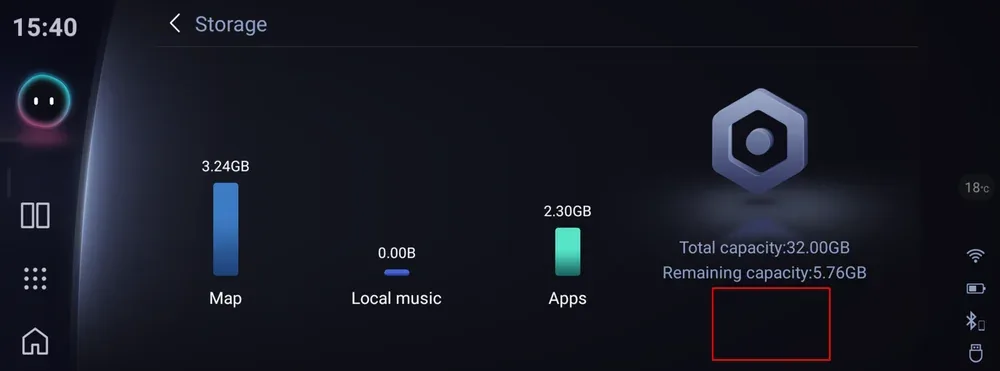
On the Omoda C5 the Engineering Menu opens from the Storage screen, with no password.
- 2.1 Open the Storage screen, then tap the bottom-right corner 10 times in a row, just below Remaining capacity. The Engineering Menu (EngineeringMode) opens.
Storage screen: tap the circled area 10 times - 2.2 Tap the upper part of the screen, on the EngineeringMode title, to open the page with adb模式.
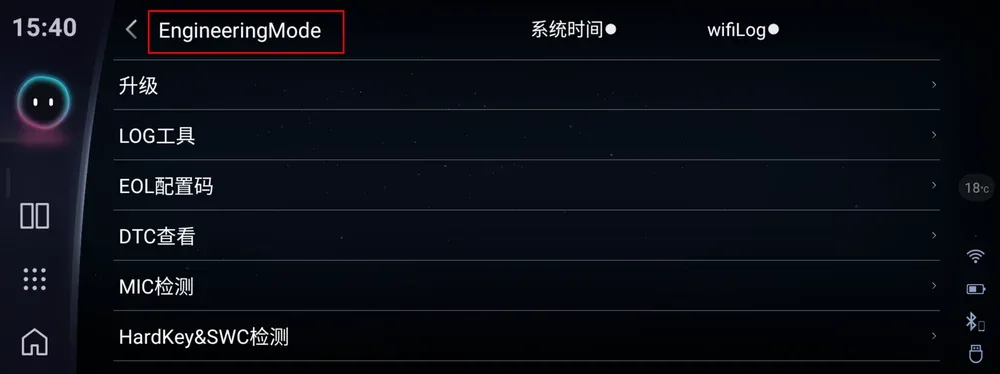
Tap the EngineeringMode title - 2.3 Turn the adb模式 (ADB mode) switch on.
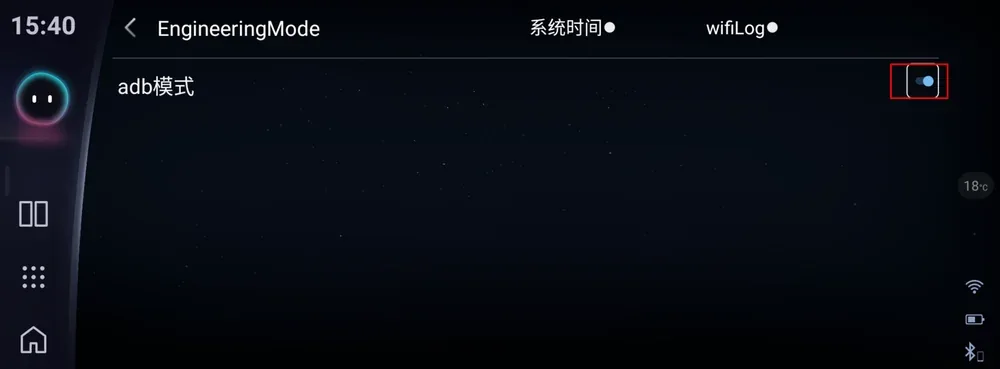
Turn on the adb模式 switch
JaecooApp Installation Video
Once ADB is enabled, watch the video below to install JaecooApp on the vehicle's head unit.