Also available in: Tiếng Việt · Bahasa Indonesia · ภาษาไทย · Português · Қазақша · 中文 · Français · العربية · Русский · Español
On this page
Apps installed on the Jaecoo J7 or Omoda C5, such as YouTube, Google Maps and Waze, need an internet connection on the head unit. The simplest is your phone’s Wi-Fi hotspot.
Step 1: Turn on the hotspot on your phone
Turn on Personal hotspot (iPhone) or Hotspot / Tethering (Android) and note the network name and password.
Step 2: Connect the head unit
With JaecooApp:
- Open JaecooApp → Wi-Fi Network.
- Under nearby networks, tap your hotspot. Each network shows its signal and security type.
- Enter the password and tap Connect. You’ll see Successfully connected to followed by the network name.
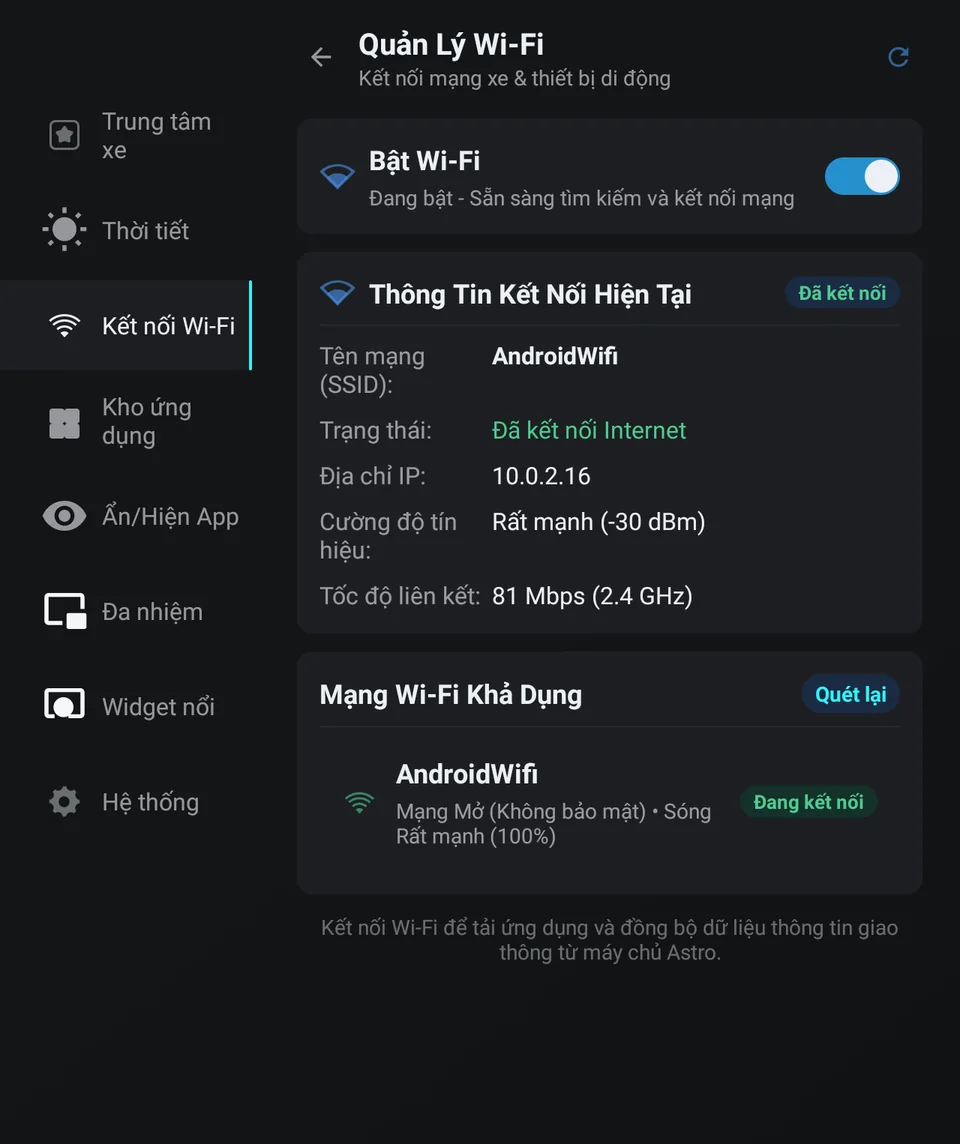
Step 3: Check the connection
The same screen shows the status (Connected to Internet), IP address, signal strength in dBm, link speed and band. If it’s connected but not online, check that your phone has mobile data.
If it won’t connect
- No networks in the list: turn on the Wi-Fi switch at the top of the screen. JaecooApp also needs the location / nearby devices permission to scan for networks.
- Could not connect: check the password, keep the hotspot switched on on your phone, then tap the network again.
- Android phone with Android Auto: Android Auto can interfere with the car’s Wi-Fi, and JaecooApp shows a notice about it. Turn Android Auto off on the phone (Settings → Apps → Android Auto → Disable) and, on the car, remove the phone in Car Settings → Equipment Management → Android Auto.
Frequently asked questions
Does the car use a lot of data?
Navigation uses little; streaming video uses the most. Lower the YouTube quality to save data.
The password is refused.
Wi-Fi passwords are at least 8 characters and case-sensitive. Check the hotspot password on your phone.
Why does JaecooApp warn about Android Auto?
On an Android phone, Android Auto can interfere with the car's Wi-Fi. Turn it off on the phone and remove the phone from the car's Android Auto list before setting up Wi-Fi.