Also available in: Tiếng Việt · Bahasa Indonesia · ภาษาไทย · Português · Қазақша · 中文 · Français · العربية · Русский · Español
On this page
Waze on the Jaecoo J7 or Omoda C5 normally means Android Auto or Apple CarPlay with your phone plugged in. With JaecooApp, Waze runs on the head unit itself, full screen, with live traffic, accident and speed camera alerts from other drivers.
What you need
- JaecooApp on the car: enable ADB, then install it with the installer.
- Internet on the car, usually your phone’s Wi-Fi hotspot (see connecting the head unit to Wi-Fi).
Install Waze
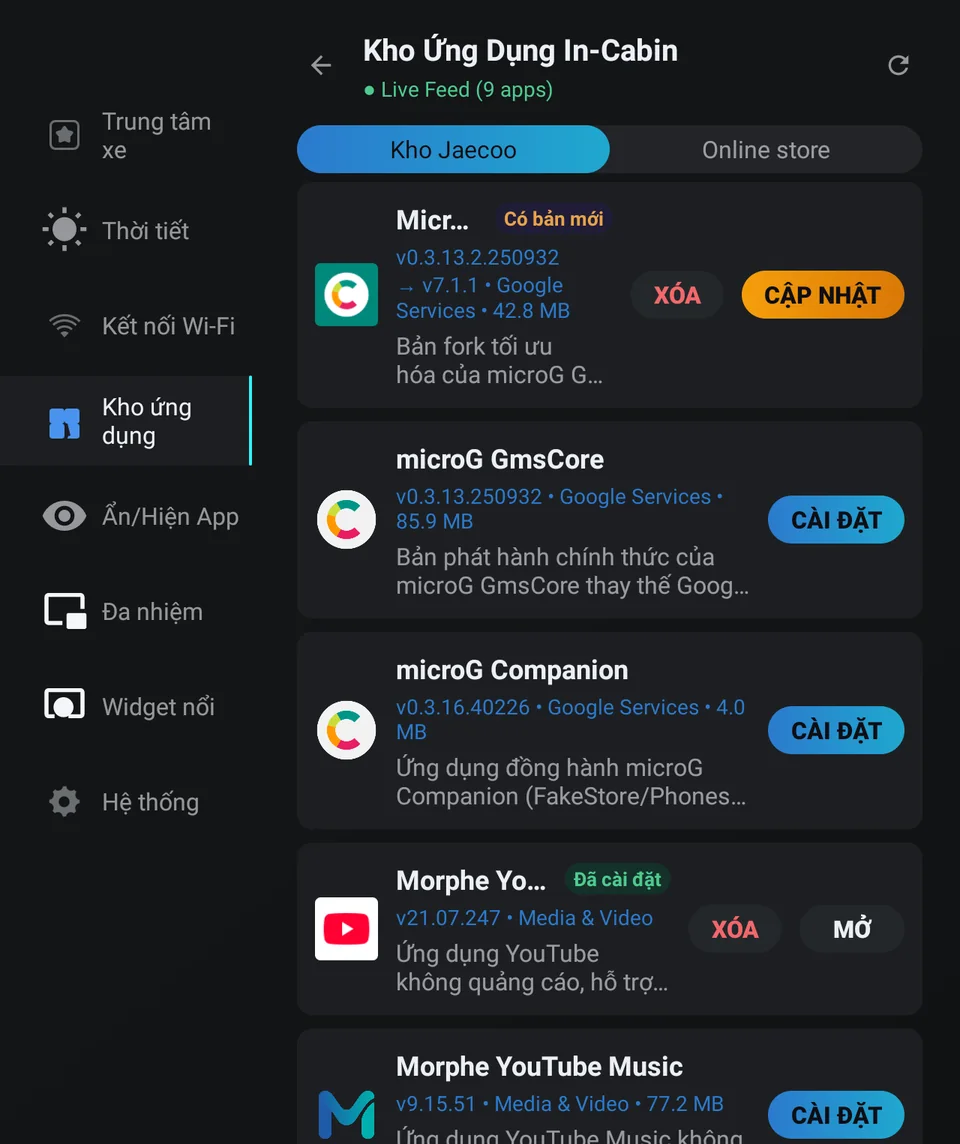
- Open JaecooApp → App Store → Jaecoo store.
- Find Waze Navigation & Live Traffic and tap install.
- Open Waze and allow location access when it asks, so it can follow the car.
Make it easy to reach
- Put Waze on the ring of the floating widget so it opens from any screen.
- Want Waze only, not the car’s own map? JaecooApp can hide the built-in navigation.
If Waze doesn’t work
- No route or alerts: Waze is online only. Check that JaecooApp’s Wi-Fi Network tab shows Connected to Internet.
- Waze next to your music: open it, or your music app, in a floating window so both stay on screen.
- Updates: when Jaecoo Store has a newer Waze, an Update button appears in App Store and App Manager.
Frequently asked questions
Waze or Google Maps?
Both are in Jaecoo Store. Waze is strong on community alerts (traffic jams, accidents, police, speed cameras); Google Maps on search and lane guidance. You can install both.
Does Waze work without internet?
Waze needs a data connection for routes and live alerts. Connect the head unit to your phone's hotspot.
How do I update Waze?
In JaecooApp. When Jaecoo Store has a newer version, App Store and App Manager show an Update button.