Also available in: Tiếng Việt · Bahasa Indonesia · ภาษาไทย · Português · Қазақша · 中文 · Français · العربية · Русский · Español
On this page
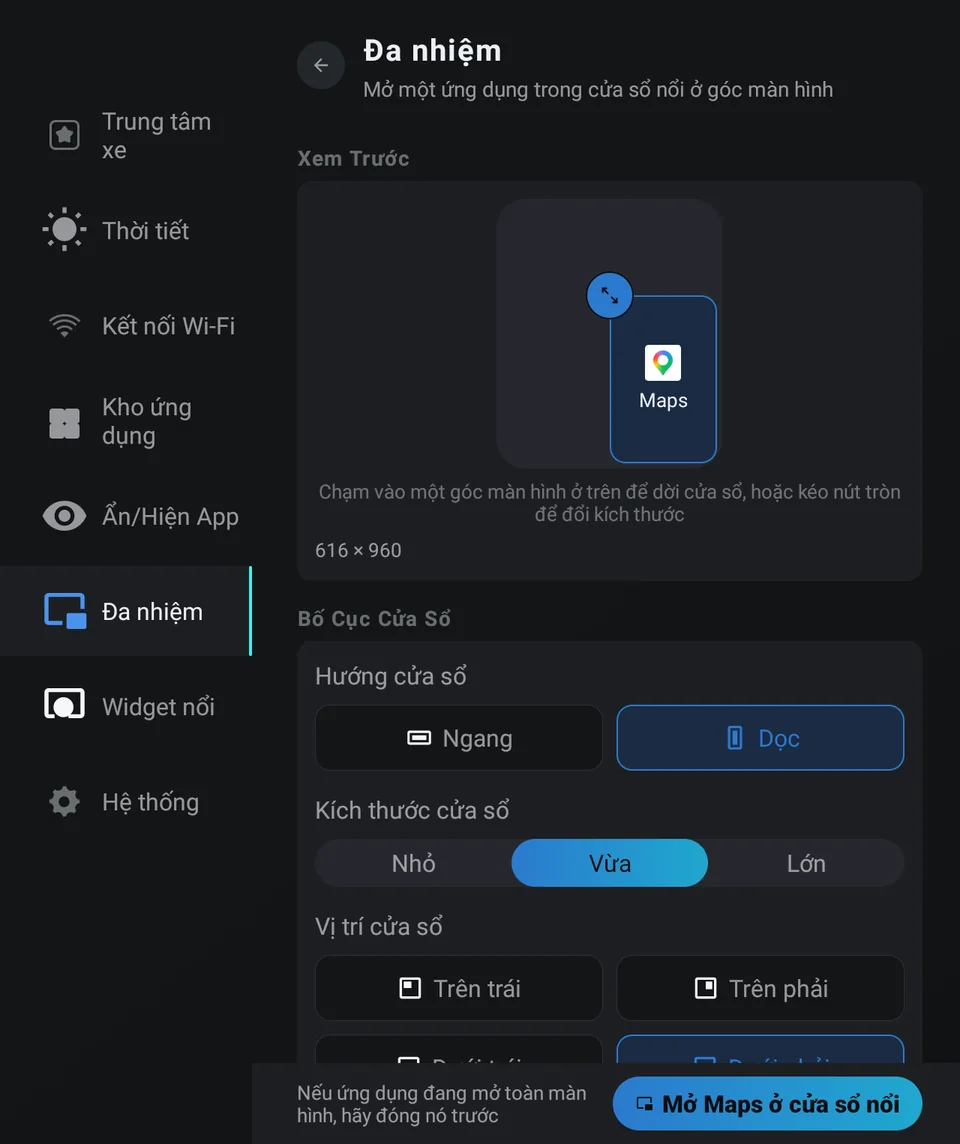
The Jaecoo J7 and Omoda C5 screens show one app at a time. JaecooApp’s Multitasking screen opens a second app in a floating window in a corner, so you can keep Google Maps full screen while YouTube Music, a radio app or a messenger stays visible.
Step 1: Turn on floating windows
- Install JaecooApp with the installer (after enabling ADB).
- Open JaecooApp → Multitasking. If it says Floating windows are off, tap Turn on.
Step 2: Set up the layout
- Floating App: tap the app that should float.
- Window shape: Landscape or Portrait.
- Window position: Top left, Top right, Bottom left or Bottom right.
- In Preview, tap a corner to move the window or drag the handle to resize it.
Step 3: Launch it
Tap Launch layout. If the app is already open full screen, close it first.
Keep it on top
Turn on Keep the floating window on top so the window comes back after Home or switching apps. It needs the JaecooApp floating window keeper in Settings › Accessibility; the keeper only checks which windows are on screen and reads nothing inside them.
Window not appearing? See Floating window or bubble not showing.
Good to know
- The Floating App list has a search box, handy when many apps are installed.
- The keeper turns on only while a floating window is open.
- Show on the floating widget only appears on the ring while the weather bubble is switched on.
Frequently asked questions
Can I choose any app for the floating window?
Any app with a launcher icon. Pick it in the Floating App list on the Multitasking screen.
How do I close the floating window?
Tap the ✕ on the window.
Can I open two floating windows at once?
The Multitasking screen sets up one floating app at a time. Pick another app in the Floating App list to change it.