Also available in: Tiếng Việt · Bahasa Indonesia · ภาษาไทย · Português · Қазақша · 中文 · Français · العربية · Русский · Español
On this page
On an Android phone you turn on USB debugging in Developer options, after tapping the build number seven times. The Jaecoo J7 and Omoda C5 head units don’t offer that path. Their debugging switch, ADB SWITCH, lives in the car’s engineering menu.
Where the switch is
- Open the engineering menu:
- Jaecoo J7: Settings → System, tap the Version information title 10 times.
- Omoda C5: Settings → System, tap the bottom-left corner 10 times.
- Tap Encryption and enter the password calculated for your car (how it works).
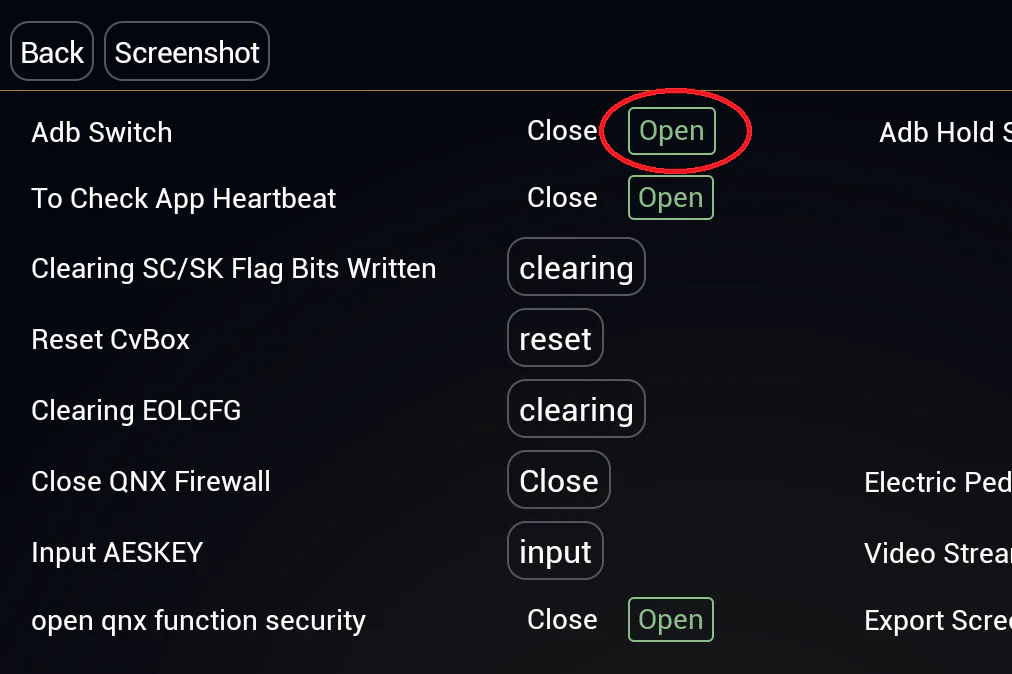
- Open ADB SWITCH and set Adb Switch to Open.
Connect a computer
- Use a USB-A to USB-A data cable in the car’s USB-A (CarPlay / Android Auto) port; the USB-C port only charges.
- Turn off Bluetooth on the head unit.
- The JaecooApp installer works in Chrome or Edge with no software to install. If the car doesn’t appear, see Car not found in the WebUSB installer.
Do you need to keep ADB on?
No. ADB is only needed for the installer page: installing JaecooApp, uninstalling it, or granting permissions to other apps. After that, JaecooApp installs apps and updates itself from the car screen, so you can set Adb Switch back. Turn it on again whenever you need the installer.
Frequently asked questions
Can I turn ADB off again?
Yes. Open the engineering menu, go to ADB SWITCH and set it back. Apps you installed stay on the car.
Is turning on ADB the same as rooting?
No. ADB is a debugging connection built into Android. It does not root the car.
Does JaecooApp need ADB to stay on?
No. Once installed, JaecooApp works and updates itself without ADB. You only need ADB again for the installer page, for example to uninstall or reinstall it.