Also available in: Tiếng Việt · Bahasa Indonesia · ภาษาไทย · Português · Қазақша · 中文 · Français · العربية · Русский · Español
On this page
Guides for the Jaecoo J7 say to tap the Version information title ten times. On the Omoda C5 that does nothing: the engineering menu (also called engineering mode or hidden menu) opens from a corner of the screen.
Open the engineering menu
- With the car on, open Settings → System.
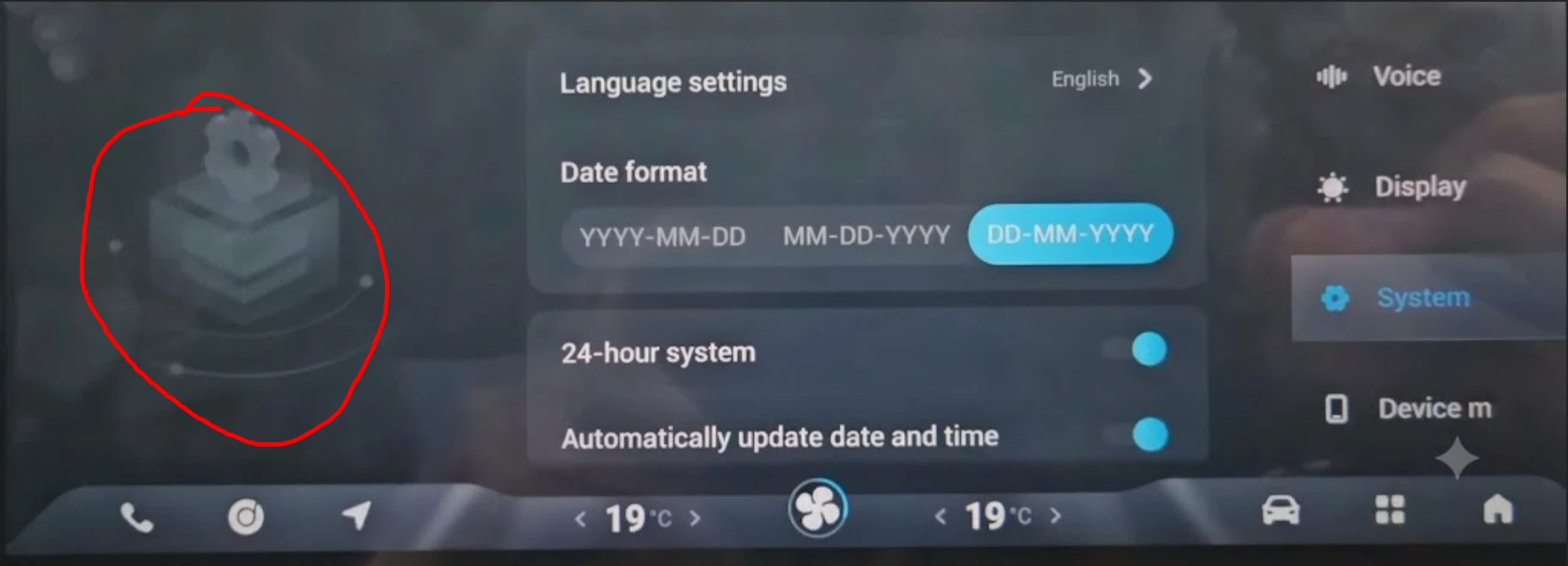
- Tap the bottom-left corner of the screen 10 times quickly, in the area circled in red below.
- The engineering menu opens.
Turn on ADB
- Tap Encryption and calculate the password for the version shown (how the password works).
- Open ADB SWITCH and set Adb Switch to Open.
The full walkthrough with the password calculator is in the ADB guide for the C5.
If it doesn’t work
- The menu doesn’t open: tap quickly and without pausing, right in the corner. If nothing happens, leave the System screen, open it again and start counting from one.
- The password is refused: the window shows Version 1.0, 2.0 or 3.0, and each uses its own formula. See Engineering menu password not accepted.
- The installer doesn’t find the car: use a USB-A to USB-A data cable in the USB-A port and turn off Bluetooth on the head unit (more causes).
What next?
With ADB on, install JaecooApp from your browser and add apps such as YouTube and Google Maps.
Frequently asked questions
I tapped the Version information title 10 times and nothing happened.
That is how the Jaecoo J7 opens it. On the Omoda C5 you tap the bottom-left corner of the System screen instead.
Is the Omoda 5 the same?
The Omoda C5 is sold as the Omoda 5 in some countries. If your screen looks like the picture, the steps are the same.
Which password version does the Omoda C5 use?
The password window shows it - Version 1.0, 2.0 or 3.0. Pick the matching tab in the calculator and type in the numbers the window shows.