Also available in: Tiếng Việt · Bahasa Indonesia · ภาษาไทย · Português · Қазақша · 中文 · Français · العربية · Русский · Español
On this page
The Omoda C5 screen runs Android but has no YouTube and no Google Play. This guide installs YouTube with sign-in, playlists and background playback on the C5 in about 15 minutes, without rooting the car.
The one step that is different from other Jaecoo / Omoda models is how you open the engineering menu: on the C5 it is hidden in a corner of the screen.
What you need
- A laptop or Android phone with Google Chrome or Microsoft Edge.
- A USB-A to USB-A data cable (add a USB-C to USB-A OTG adapter if your device only has USB-C). Charge-only cables will not work.
- The car switched on, screen awake, and Bluetooth turned off on the head unit.
Step 1: Enable ADB on the Omoda C5
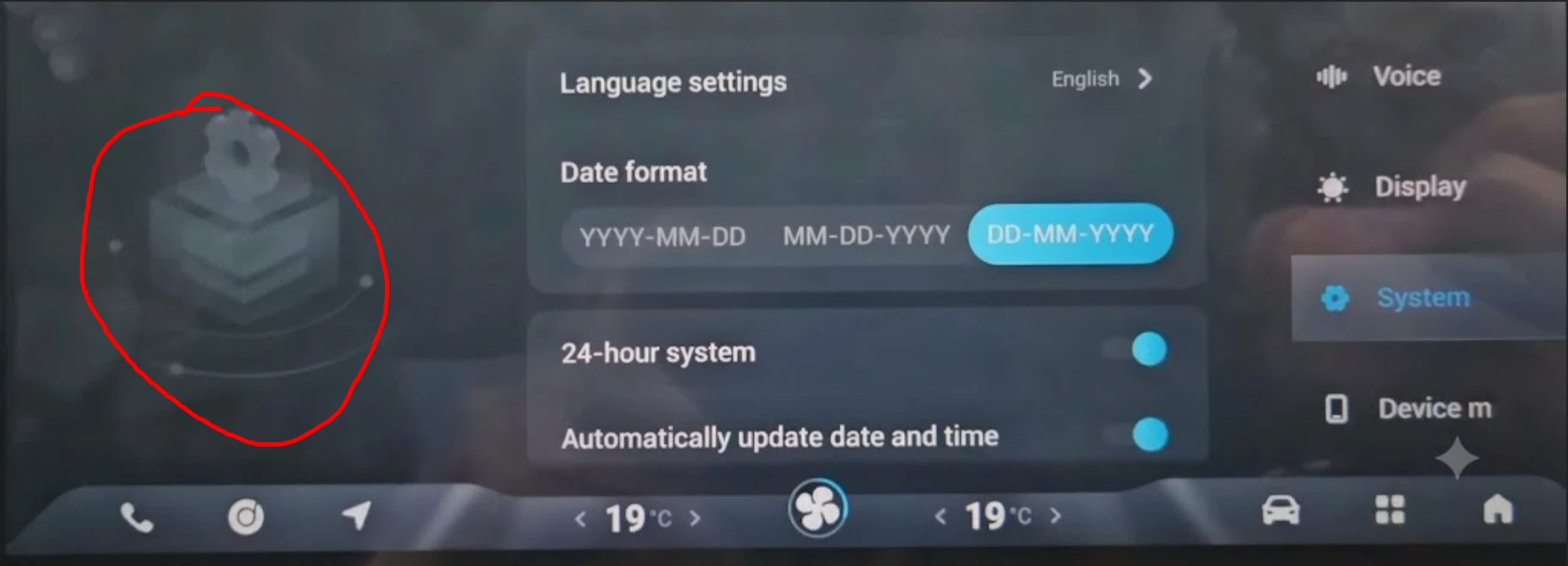
- On the car screen, open Settings → System.
- Tap the bottom-left corner of the screen 10 times (the area circled in red below) until the engineering menu opens.
- Tap Encryption and note whether the password window says Version 1.0, 2.0 or 3.0.
- Work out the password with the calculator in the ADB guide for the C5 and enter it.
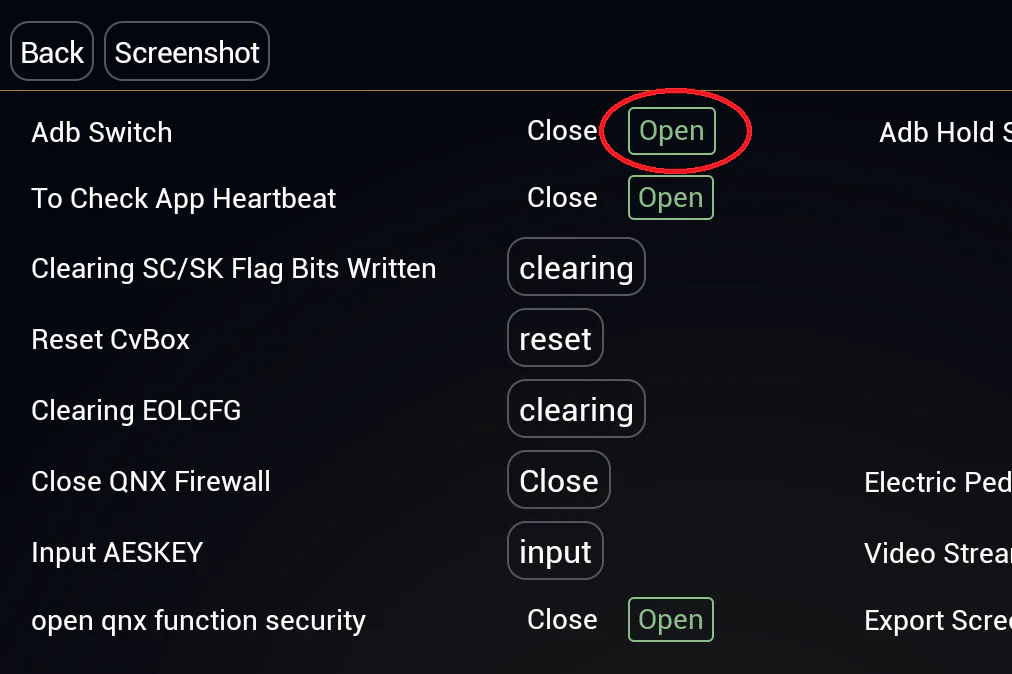
- Open ADB SWITCH and set Adb Switch to Open.
Step 2: Install JaecooApp from your browser
- Open the JaecooApp installer in Chrome or Edge.
- Connect the cable to the car’s USB-A port.
- Press Connect Head Unit and pick the head unit in the browser’s device list.
- On the car screen, tap Allow in Allow USB debugging? and tick Always allow from this computer.
- Press Install JaecooApp and keep the cable plugged in until the app opens.
Car missing from the list? Follow Car not found in the WebUSB installer.
Step 3: Install MicroG and sign in
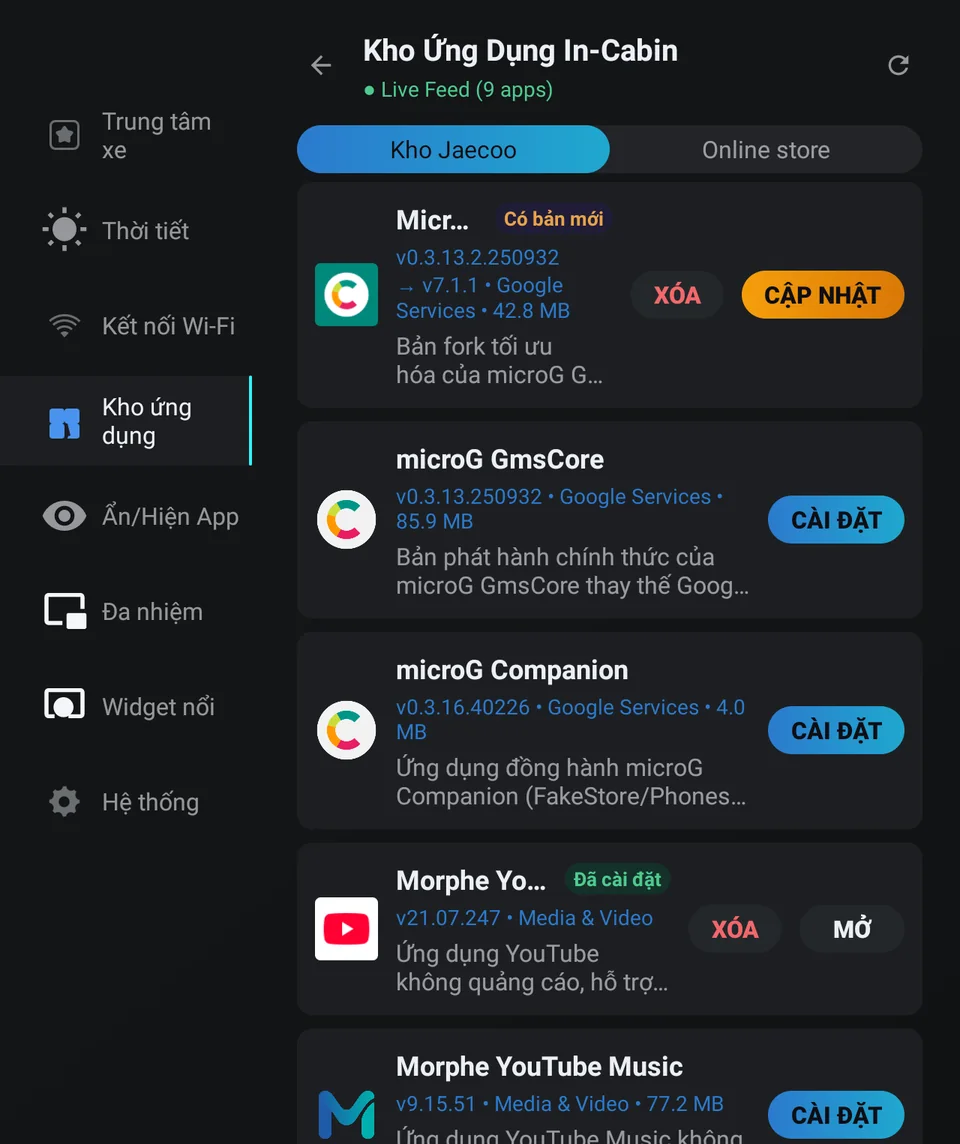
- Open JaecooApp on the C5 and go to Jaecoo Store.
- Install MicroG, open it and sign in with your Google account.
MicroG replaces Google Play Services, which the C5 does not have. Sign in here first, or YouTube will not be able to use your account.
Step 4: Install YouTube
- In Jaecoo Store, install Morphe YouTube.
- Open it and pick the Google account you added in MicroG.
You now have YouTube without ads, with your subscriptions, playlists and background playback. Morphe YouTube Music in the same store does the same for music.
Frequently asked questions
I tapped Version information 10 times and nothing happened. Why?
That is how the Jaecoo J7 opens its engineering menu. On the Omoda C5 you tap the bottom-left corner of the System screen 10 times instead.
Why can't I just install the normal YouTube app?
The Omoda C5 head unit has no Google Play Services, so the regular YouTube app cannot sign in. Morphe YouTube uses MicroG instead of Google Play Services.
Do I need a computer every time YouTube updates?
No. After JaecooApp is installed, Jaecoo Store updates YouTube and the other apps right on the car screen.
Does this work on the Omoda 5?
The Omoda C5 is sold as the Omoda 5 in some countries. If your screen looks like the pictures in this guide, the steps are the same.