Also available in: Tiếng Việt · Bahasa Indonesia · ภาษาไทย · Português · Қазақша · 中文 · Français · العربية · Русский · Español
On this page
JaecooApp’s Wallpaper tab comes with a collection of pictures made for the car screen. Now you can also use your own photo (family, your car, a trip) in two ways: send it from your phone over Wi-Fi with a QR code, or pick it from a USB drive. The photo is cut to the J7 screen’s shape and the home screen changes at once, with no restart.
Before you start
- The latest JaecooApp, installed with the installer. The installer grants the file access the Wallpaper tab needs.
- To send from the phone: the car and the phone on the same Wi-Fi network. The easiest way is to connect the car to your phone’s hotspot; home Wi-Fi works too.
Way 1: Send a photo from your phone over Wi-Fi
-
On the car, open JaecooApp → Wallpaper → Add photo → From phone. The car shows a QR code and the address of the upload page.
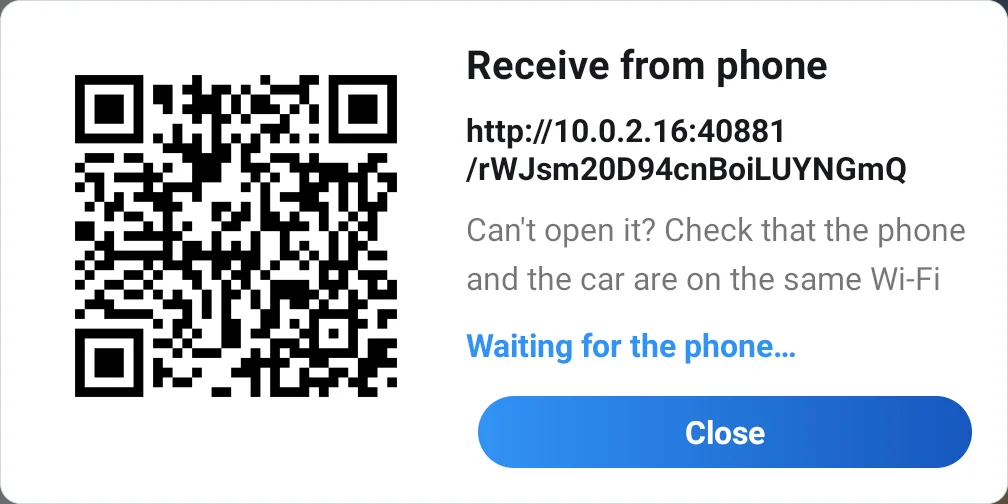
The QR code on the car opens the upload page on your phone. -
Scan the QR code with the phone’s camera and open the link in the browser. No app to install.
-
Tap Choose photo to take one from your gallery or shoot a new one.
-
Drag the photo to choose the part that will show on the car; the preview frame has the J7 screen’s shape. Tap Set as wallpaper.
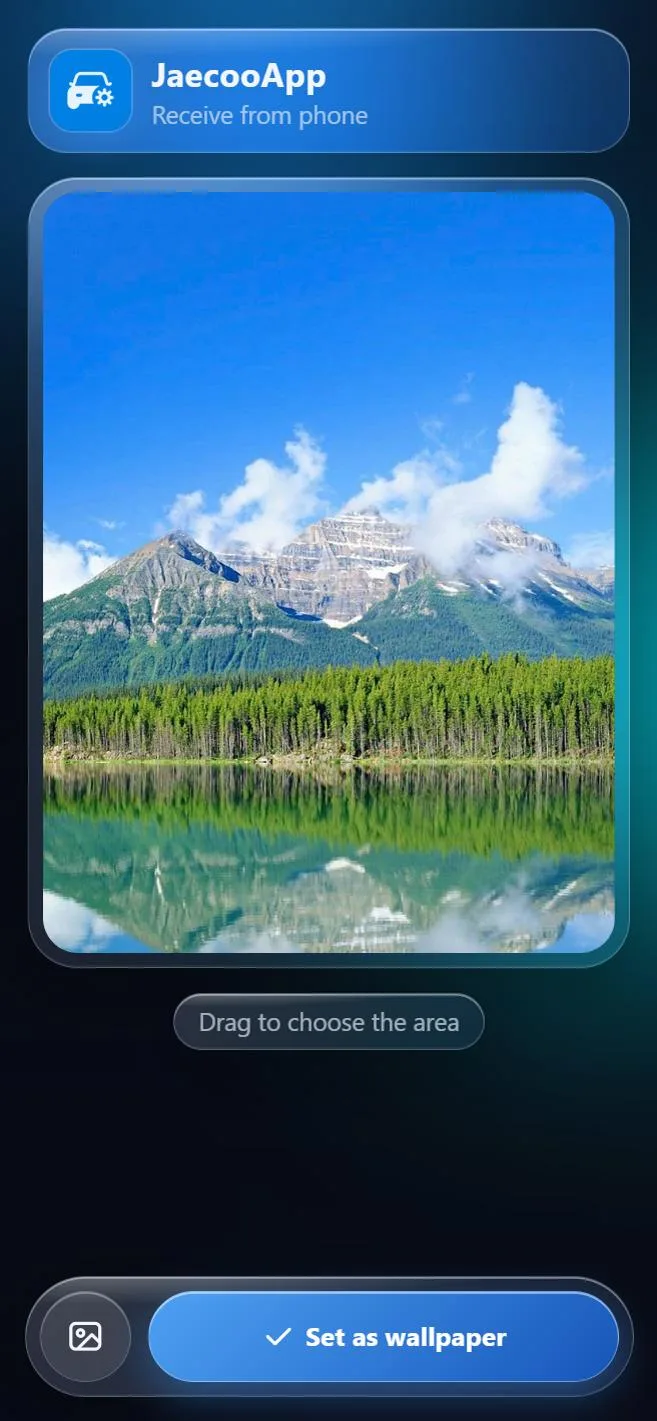
Drag to choose the area, then tap Set as wallpaper. -
The page says Wallpaper set, the car’s dialog closes and JaecooApp shows that the wallpaper is set. To use another photo, open the dialog again and scan the new code.
Way 2: Pick a photo from USB
-
Copy JPG or PNG photos to a USB drive (any folder) and plug it into the car.
-
Open Wallpaper → Add photo → From USB. JaecooApp finds the pictures on the drive and shows them as a grid.
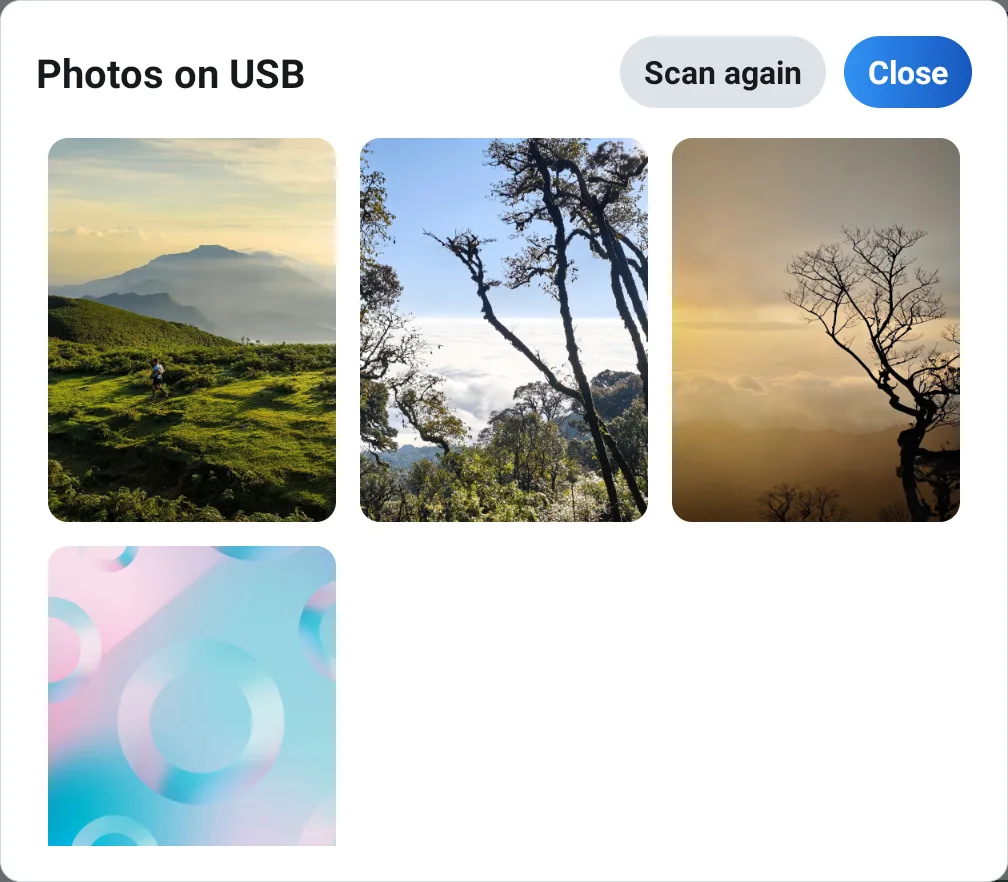
Photos on USB: tap one to preview it. -
Tap a photo to preview it exactly as it will look on the home screen, then tap Set.
Portrait photos from a phone are turned upright automatically. Each scan shows up to 300 photos and skips files over 20 MB; if you have just plugged the drive in, tap Scan again.
Back to the car’s own wallpaper
Tap Default at the top of the Wallpaper tab. The car’s own wallpaper (or video) comes straight back. The photo you set stays through switching the car off and on, until you set another one or tap Default.
Frequently asked questions
Does the phone need an app?
No. The phone scans the QR code and opens a page in its browser; choosing and cropping the photo happens on that page.
Do iPhone HEIC photos work?
Yes. When you pick a photo on the page, the iPhone converts HEIC to JPEG before sending it.
Do I need Internet?
No. The photo goes straight from the phone to the car over the same Wi-Fi network, through no server.
The QR code scans but the page does not open. What now?
Check that the car and the phone are on the same Wi-Fi network, either the car on the phone's hotspot or both on home Wi-Fi. Some routers stop devices talking to each other; use the phone's hotspot then.