Also available in: Tiếng Việt · Bahasa Indonesia · ภาษาไทย · Português · Қазақша · 中文 · Français · العربية · Русский · Español
On this page
Chat apps such as Messenger, Zalo or Telegram can show a conversation as a floating bubble on top of other apps, so a new message does not take you out of Google Maps. On the Jaecoo J7 and Omoda C5 that needs two permissions the car screen has no switch for. The JaecooApp installer grants both over the USB cable in a couple of minutes.
| Permission | What it allows |
|---|---|
| Chat bubbles | The app shows a conversation as a bubble instead of a plain notification. |
| Display over other apps | Bubbles, widgets and floating windows can be drawn on top of other apps. |
What you need
- ADB enabled on the car. If you haven’t done it yet, follow the ADB guide.
- A laptop or Android phone with Chrome or Edge, and a USB-A to USB-A data cable.
- The chat app already installed on the car (see step 1).
Step 1: Install the chat app first
Chat bubbles are allowed for the apps that are on the car at the moment you connect, so install the chat app before anything else:
- from Google Play Online Store inside JaecooApp (free apps), or
- from your computer, with Install any APK file under Advanced Options & Custom APK Sideloading on the installer page.
Step 2: Connect the installer
- Open the installer in Chrome or Edge and plug the cable into the car’s USB-A (CarPlay / Android Auto) port.
- Press Connect Head Unit, pick the car, and tap Allow on the car screen.
- Watch the status messages: right after connecting, the installer allows chat bubbles for every installed app and reports Chat bubbles allowed for N apps.
Step 3: Grant Display over other apps
- On the same page, open Floating bubble permission for installed apps.
- The list shows the apps that ask for this permission, each marked Granted or Not granted.
- Press Grant next to your chat app, or Grant all. Press Refresh if an app you just installed is missing.
Step 4: Turn on bubbles in the chat app
- Open the chat app on the car, sign in, and make sure its notifications are on.
- If the app has its own bubbles or chat heads setting, turn it on.
- When the next message arrives, a bubble appears: drag it anywhere, tap it to open the conversation.
Frequently asked questions
I installed a new chat app. Do I have to do this again?
Yes. Chat bubbles are allowed for the apps that are on the car when you connect, so connect the installer again and grant Display over other apps for the new app.
The installer says the car's system doesn't support granting chat bubbles. What now?
That car's software has no command for chat bubbles. You can still grant Display over other apps, which is what floating windows and chat heads use.
How do I take the permission back?
In the same list on the installer page, press Revoke next to the app.
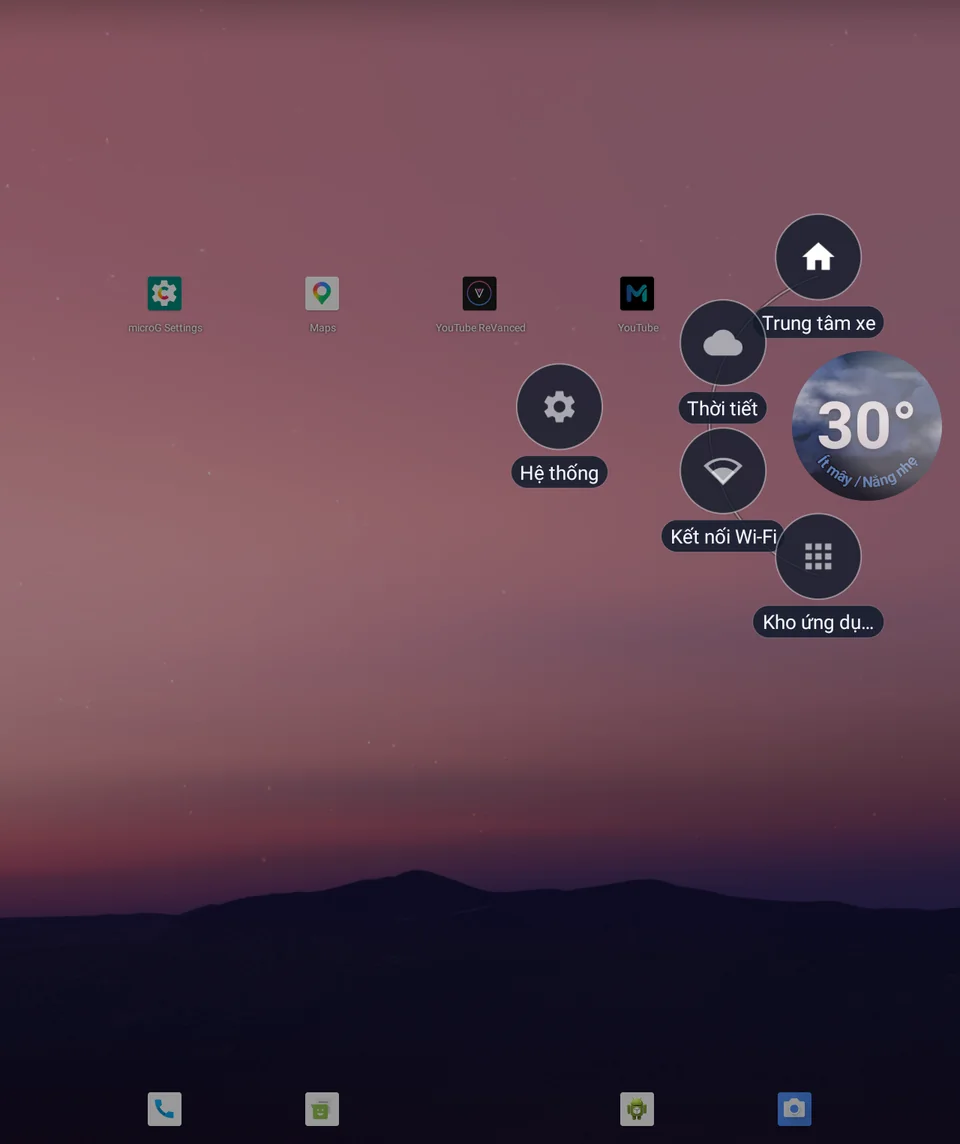
Does JaecooApp's floating weather bubble need this?
JaecooApp gets the permission when you install it with the installer. If the weather bubble asks for it anyway, grant it to JaecooApp in step 3.